
System main page (Brief introduction)
Screenshots for this guide are coming soon. If a step is unclear, WhatsApp us at +65 8508 9618.
-
System Menu; click on the icon (3 horizontal lines) to access the system menu pop-up page
-
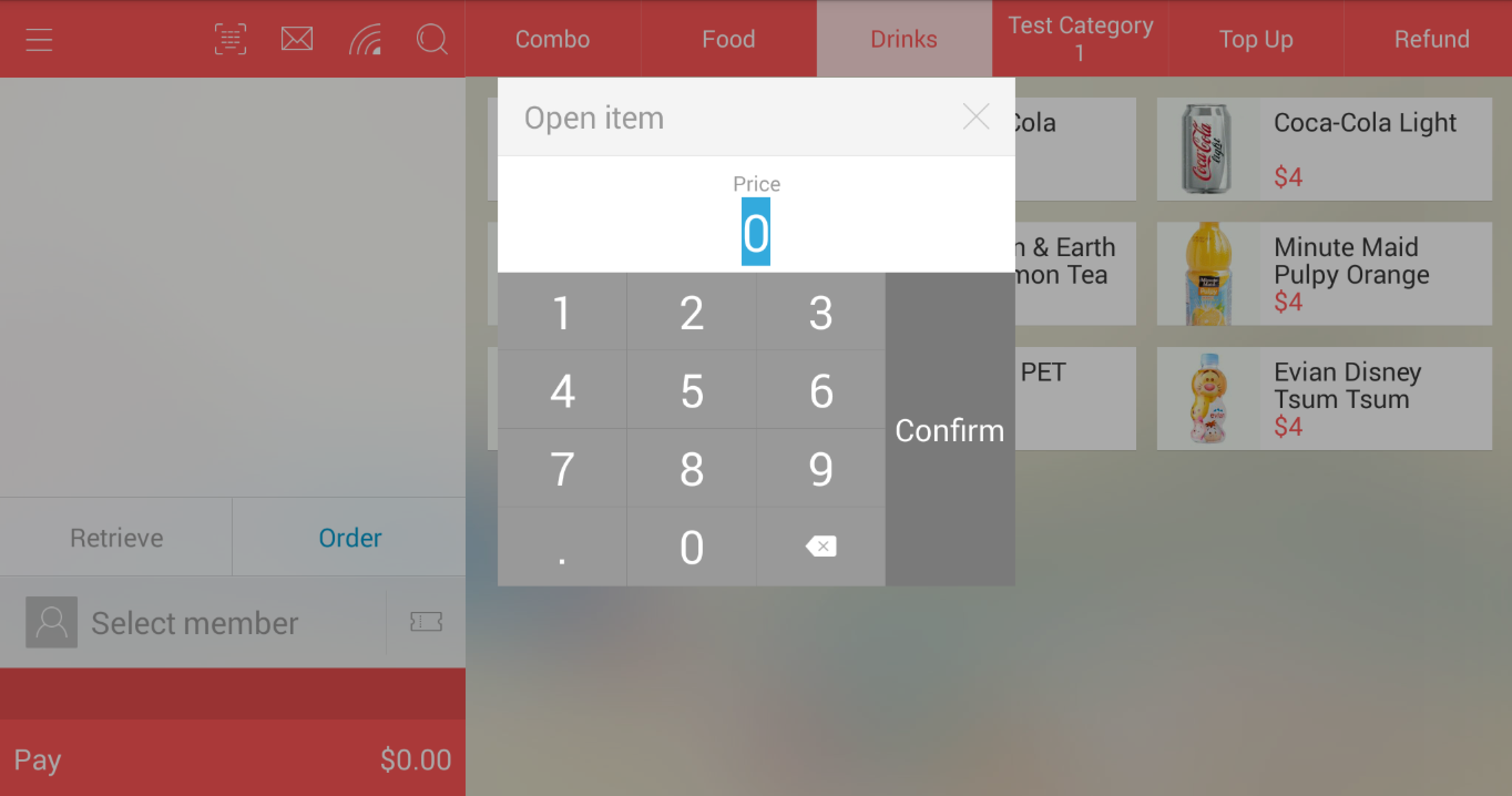
Open Item Key; used to enter an open price item that is not within the menu/product & services list
-
Notification centre; to view any incoming deliveries
-
Connection Status; used to check your connection status for Wifi, internal thermal printer and external kitchen printers/kitchen display systems
-
Search function; used to search for your products based on product name (click on the "shortcut" to enable on screen keyboard) or product barcode (by typing or scanning)
-
Product categories; all your categories will be displayed here
-
Individual product; individual products found within the category
(To prompt the item's pop-up menu for more details, click on the item image)
-
- OR -
(Click on the item's name and price to add it directly to cart without prompting the pop-up menu)
- OR -
- Retrieve hold bill; used to retrieve bills that have been put on hold, typically used in a restaurant concept or when customers are unable to confirm/pay their orders at the point of time
Clear; the "Retrieve" icon will convert to "Clear" once item(s) is added to the shopping cart, use this function to clear your existing shopping cart all at once
- Order; this functions enables the customer's display in-built camera (only available to specific models of devices) to act as a barcode/QR code scanner, typically used for on-going promotional items sent to customer in the form of a QR code
Hold; the "Order" icon will convert to "Hold" once item(s) is added to the shopping to the shopping cart, use to hold bills, typically used in a restaurant concept or when customers are unable to confirm/pay their orders at the point of time
(Hold by queue number)- OR -
(Hold by preset table number)
-
Select member; used to search and select a member (click on the "shortcut" to enable on screen keyboard)
-
Coupons; used to enter coupon code to be entitled for coupon-specific discount/promotions
-
Payment button; proceed to payment page (grand total amount shown on the right side)
Any Enquiries? Message us!
If you have any question or concern, please fill below and we’ll get back to you shortly.
Get in Touch with Us


7 Holland Village Way, #05-03/05 Tower Lobby B, One Holland Village, Singapore 275748

Call us for a Quote

+65 8771 8700
+65 6850 5177
Stay Connected
Copyright © Weebo Pte Ltd All Rights Reserved.