
Promotion - Set promotion
-
Login To Back Office; Dashboard
-
Select Promotion under MKG Tab
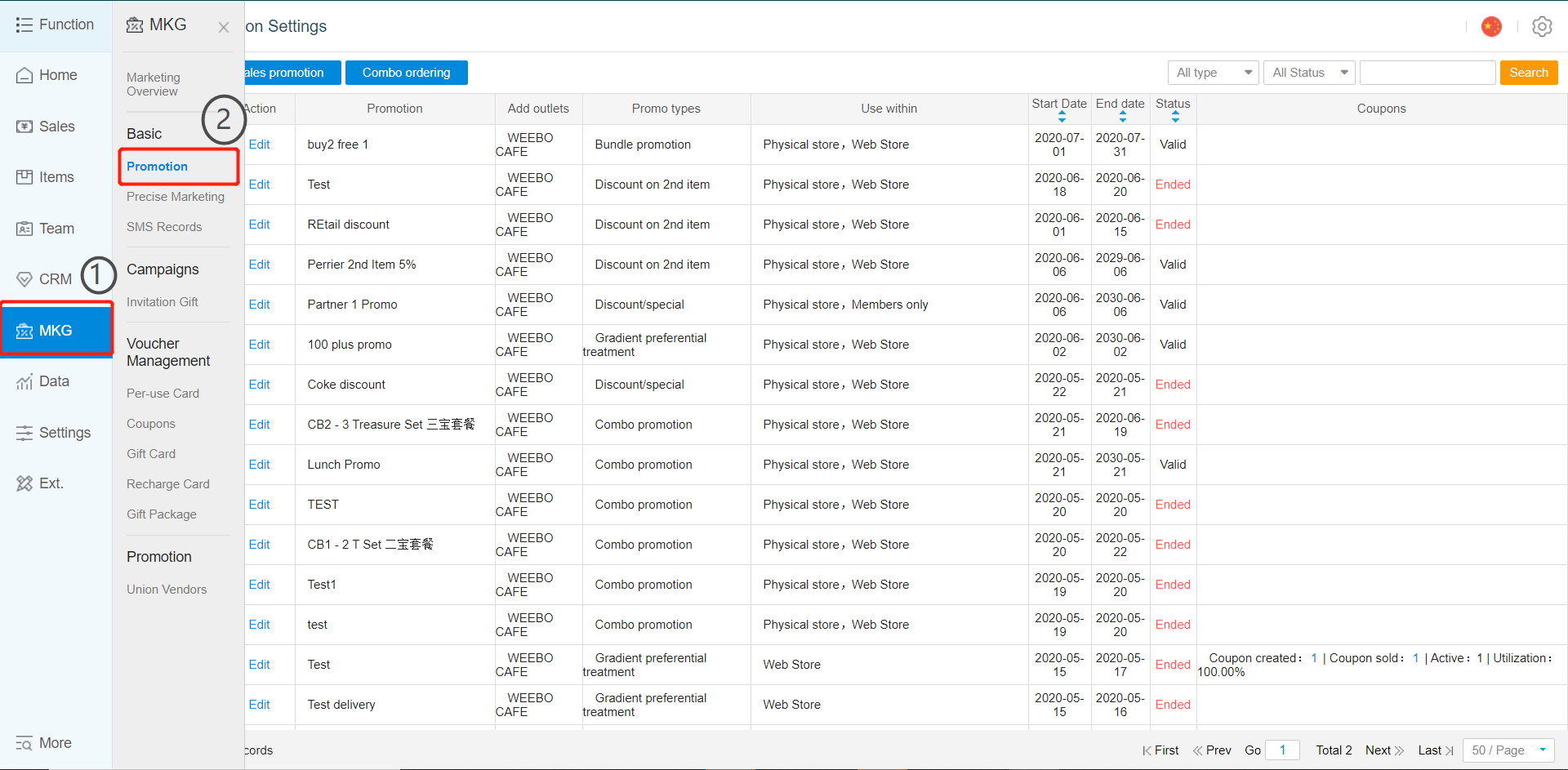
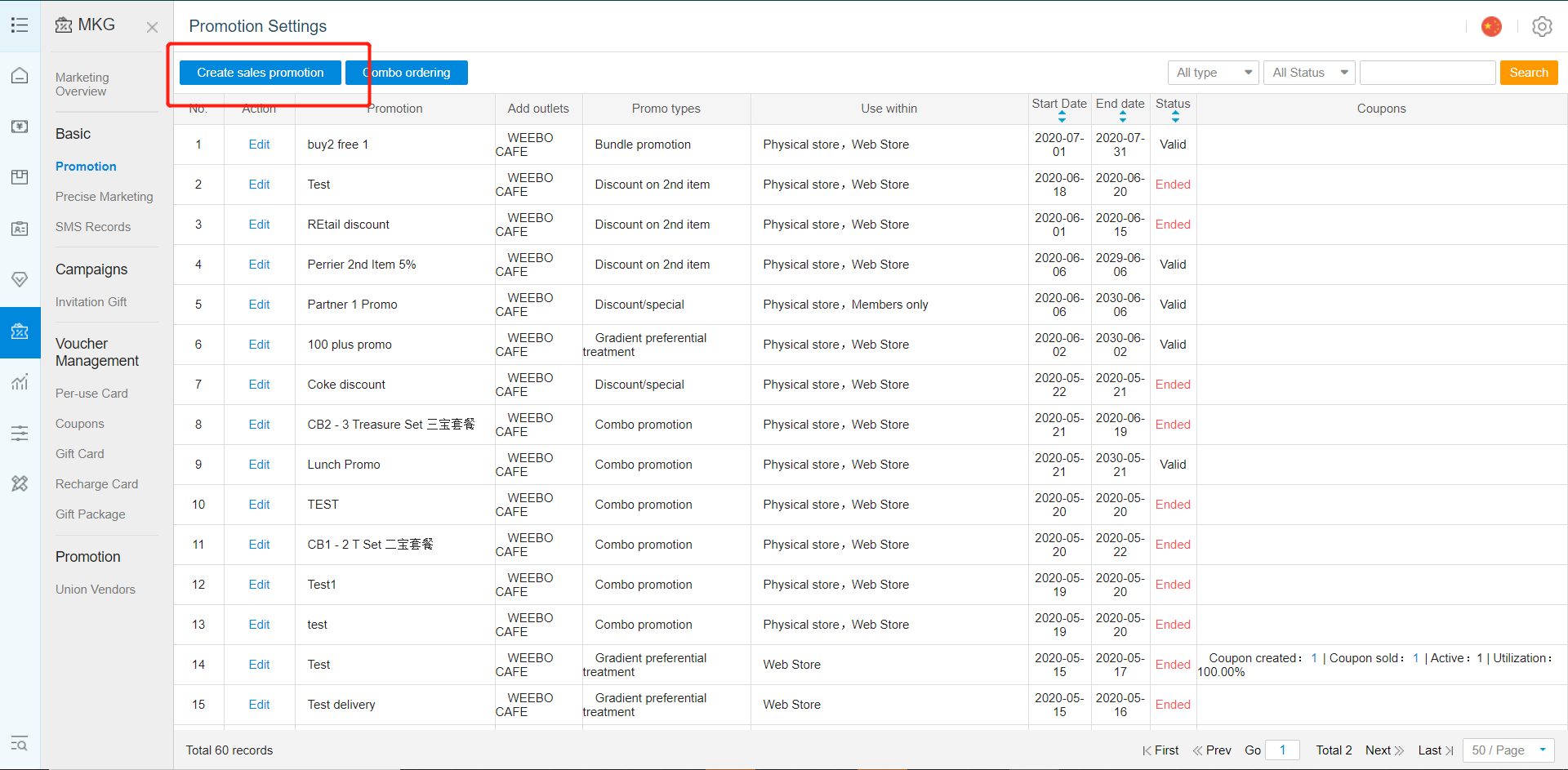
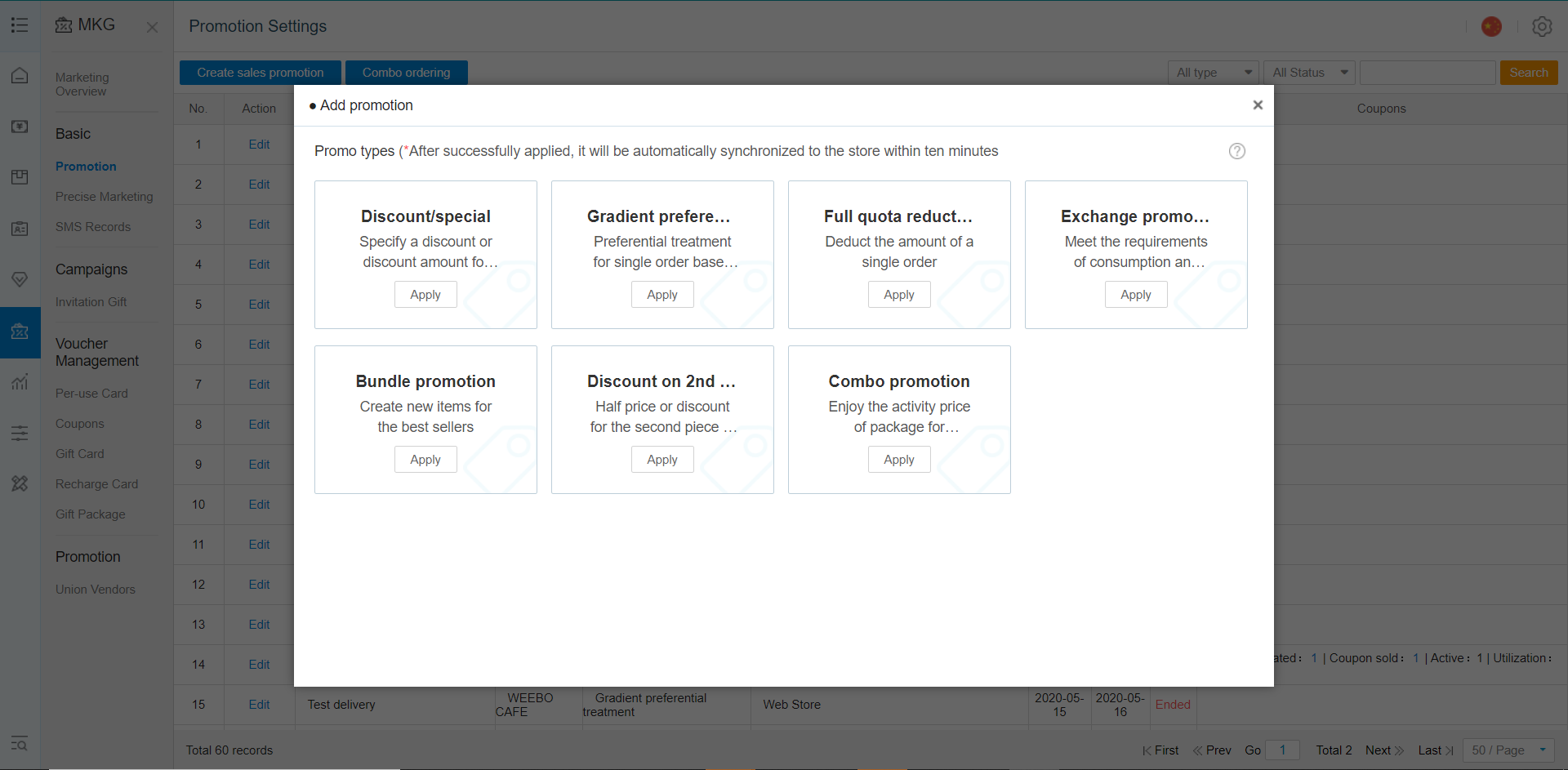
- Click Add Promotion
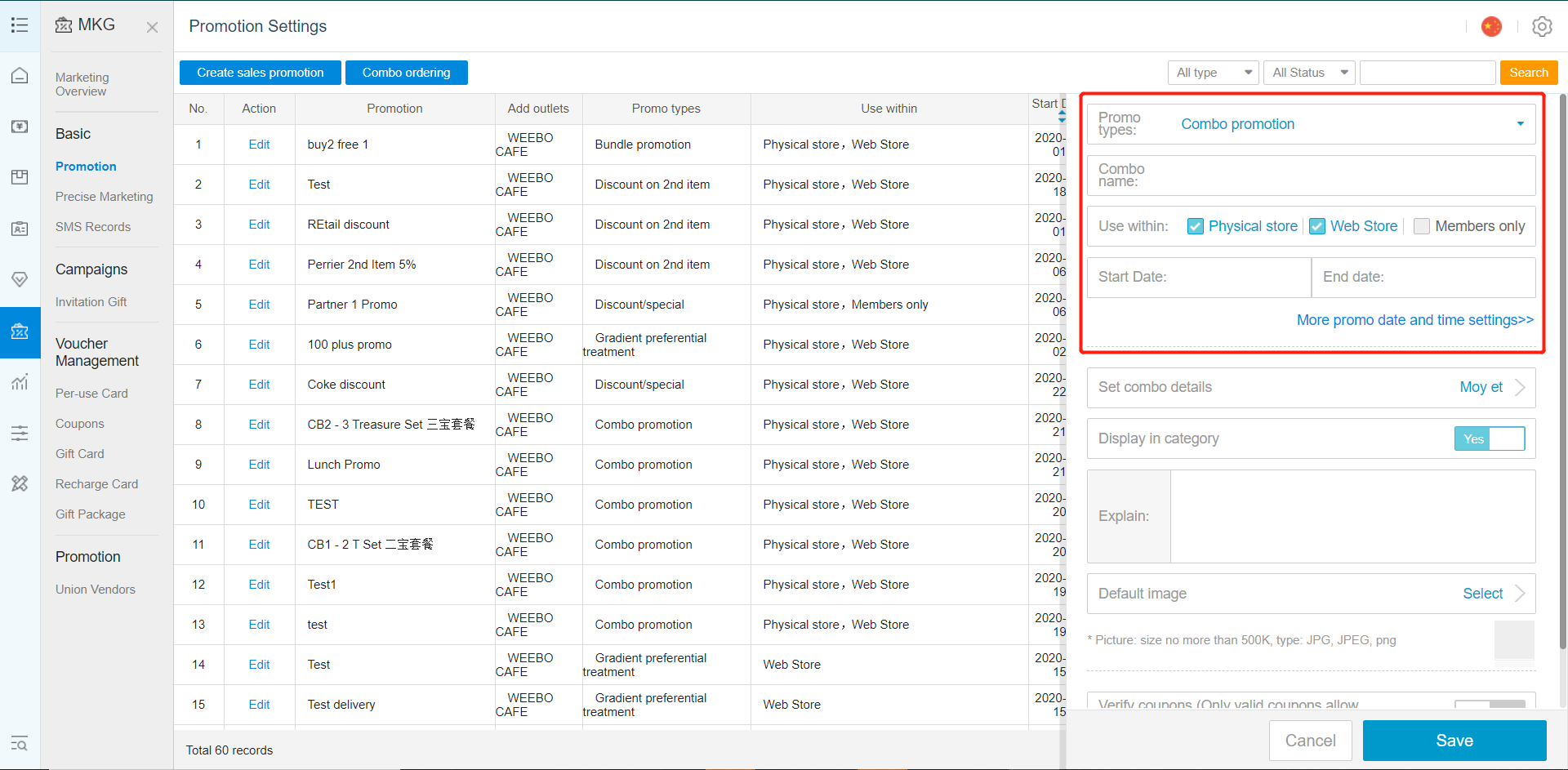
- New Option Settings For Add Promotion
Type: Select Type Of Promotion To Add
A. Discount Promotion
B. Combo Promotion (Set Promotion)
C. Cash Discount With Min. Spending
D. Exchange Promotion
E. Bundle Promotion
F. Discount On 2nd Item
Promo Name: Name For Easy Referencing
Use Within: Location Where Promotion Will Be Applied, And If Members Only, Or Anyone Can use
Start Date: / End Date: Start And End Date Of Promotion Period
B. Set Promotion
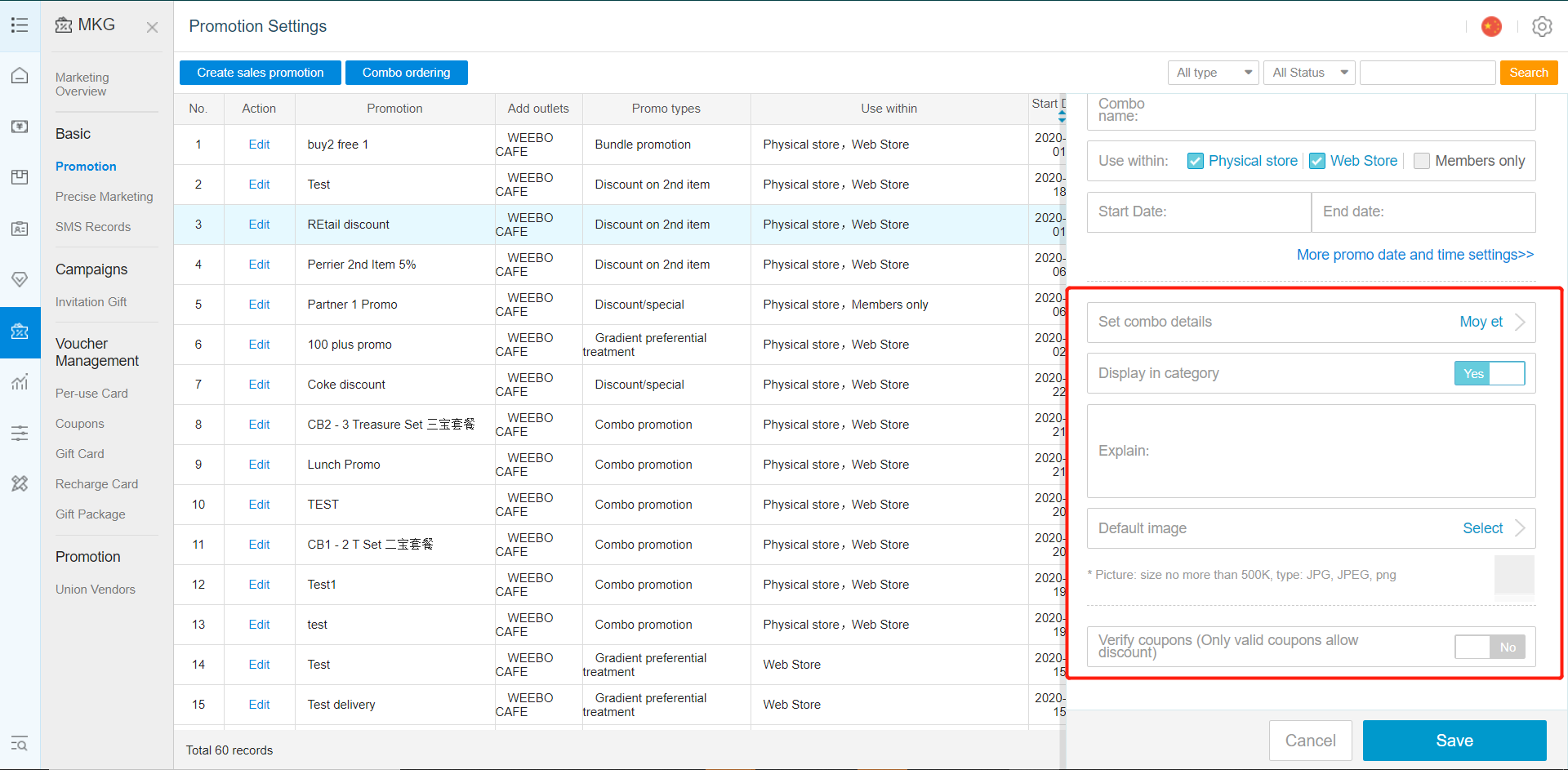
Set Combo Details: Choose Combination Of Items/Products That Is In A Set
Display In Category: Display Added Set Meal In Item Category
Default Image: Image For Display On Machine
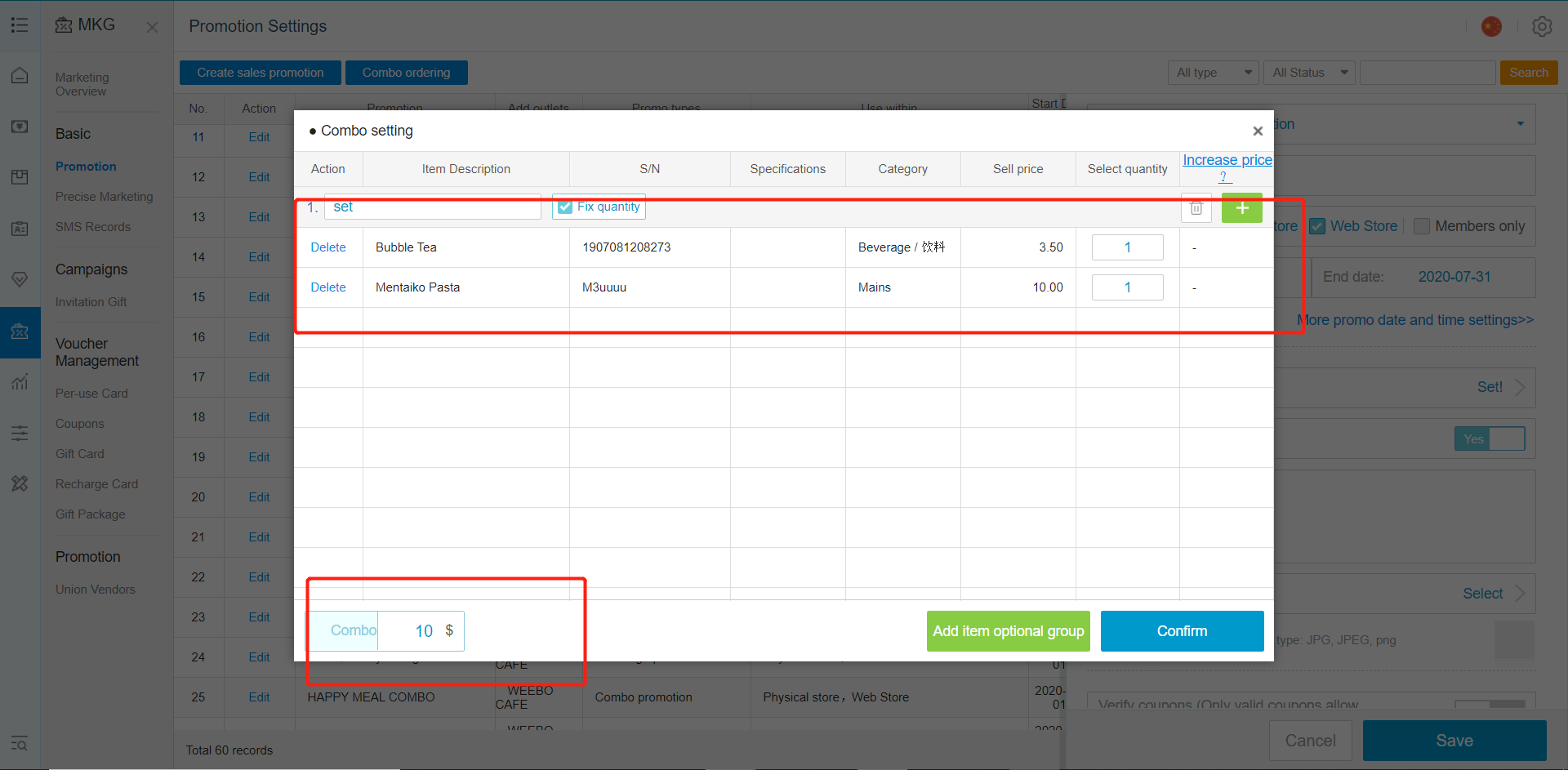
- Adding New Combo Under Set Combo Details
Example, A Mentaiko Pasta + Bubble Tea Would be [$10+ $3.5= $13.5]
However we can set the price to $10 if bought together.
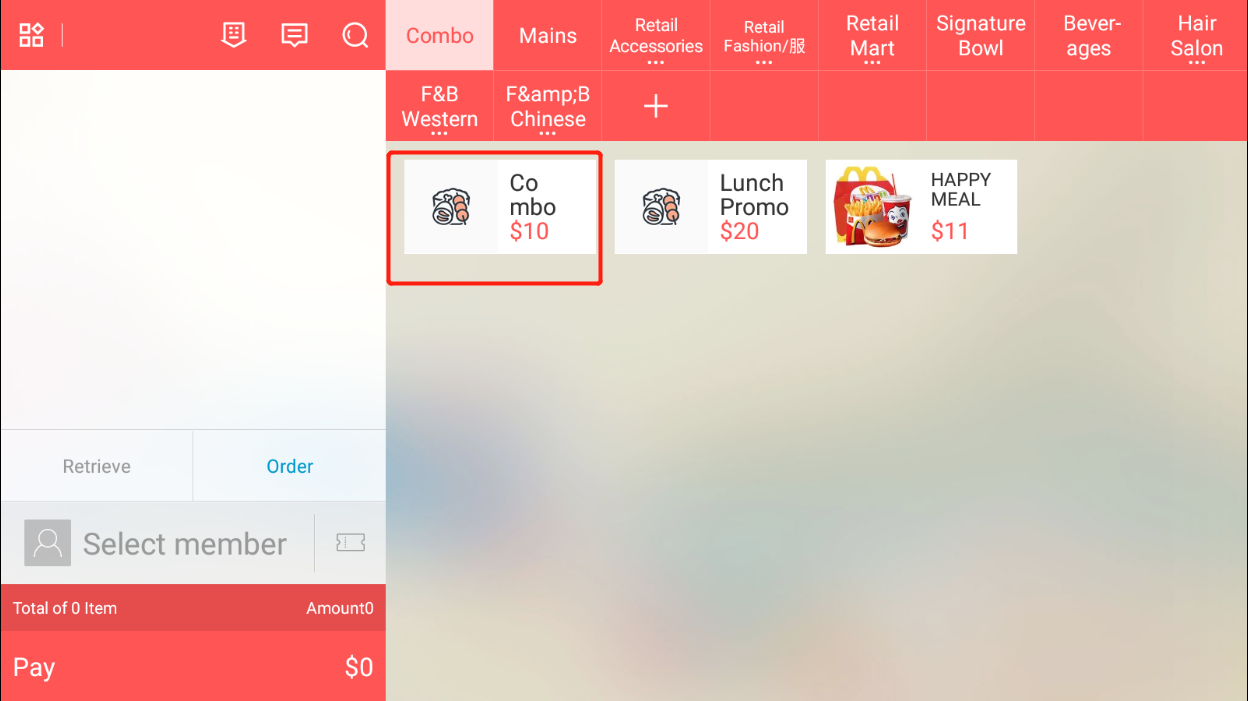
If Display In Category Is Enabled, An Additional Combo Tab Will Be Created With Available Combo(s)
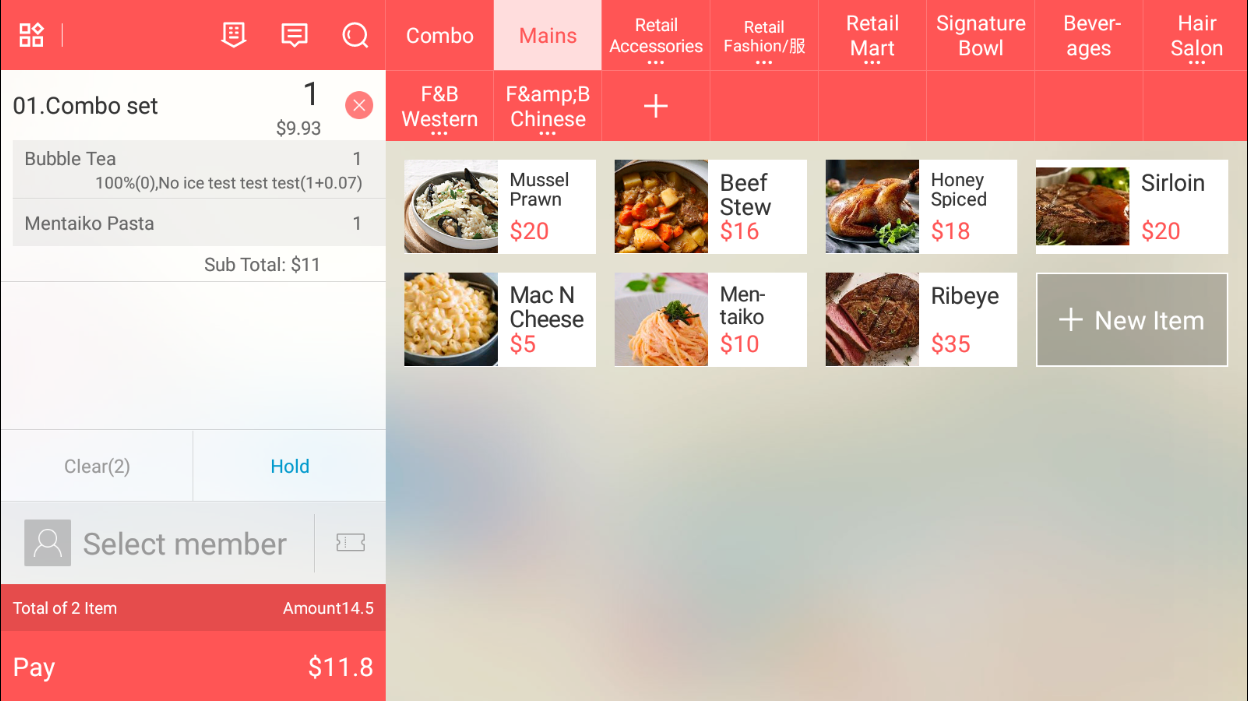
Otherwise, Manual Selection Of Individuals Combo Items Will Recognize It As A Combo And Auto Group It.
Any Enquiries? Message us!
If you have any question or concern, please fill below and we’ll get back to you shortly.
Get in Touch with Us


7 Holland Village Way, #05-03/05 Tower Lobby B, One Holland Village, Singapore 275748

Call us for a Quote

+65 8771 8700
+65 6850 5177
Stay Connected
Copyright © Weebo Pte Ltd All Rights Reserved.