
How to view transaction report
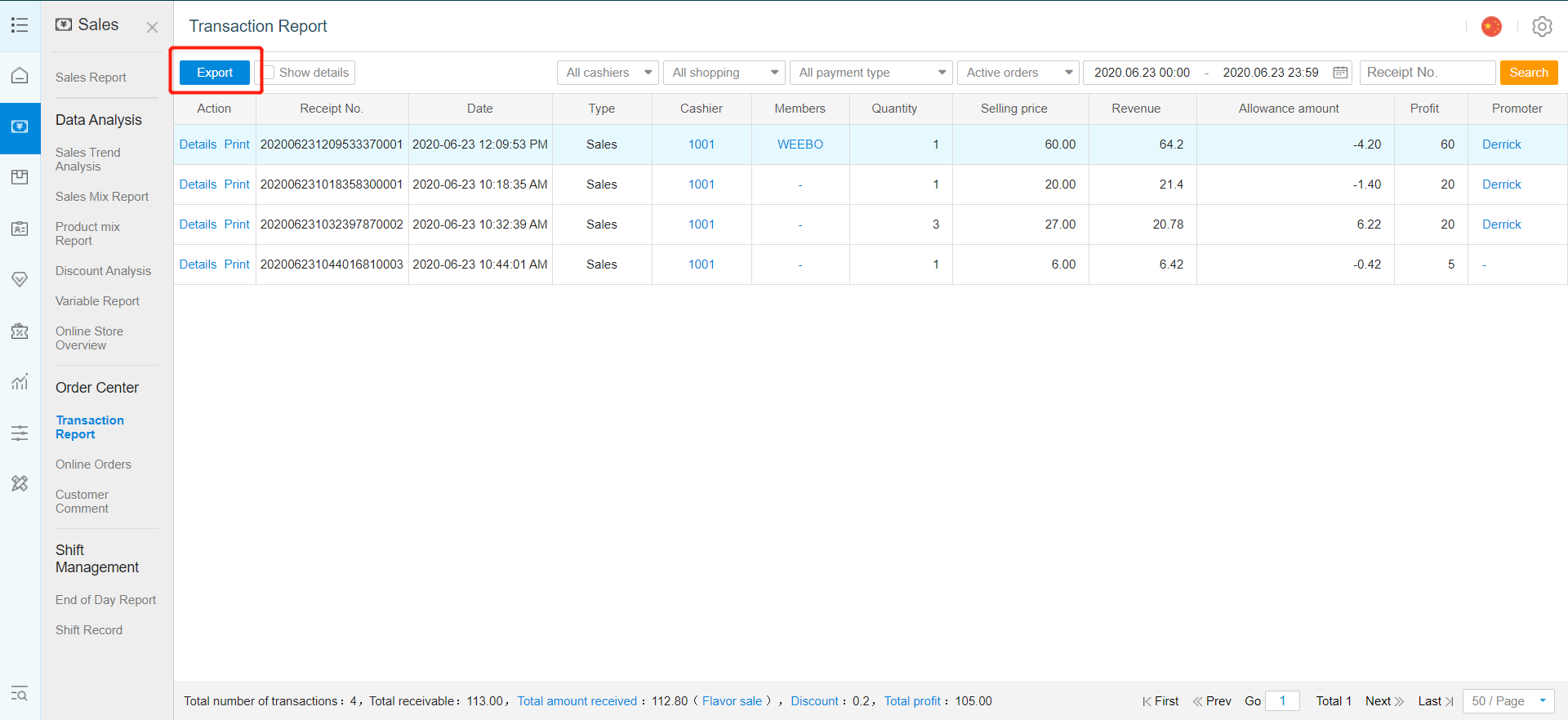
Transaction report provides you with an overall summary/specific search of each individual transaction's details based on specific search parameters and timeframe (not exceeding 3 months per search) that you have set. All data viewed under transaction report can be exported out of the back office in Excel file format.
Follow the steps below to view your transaction report:
-
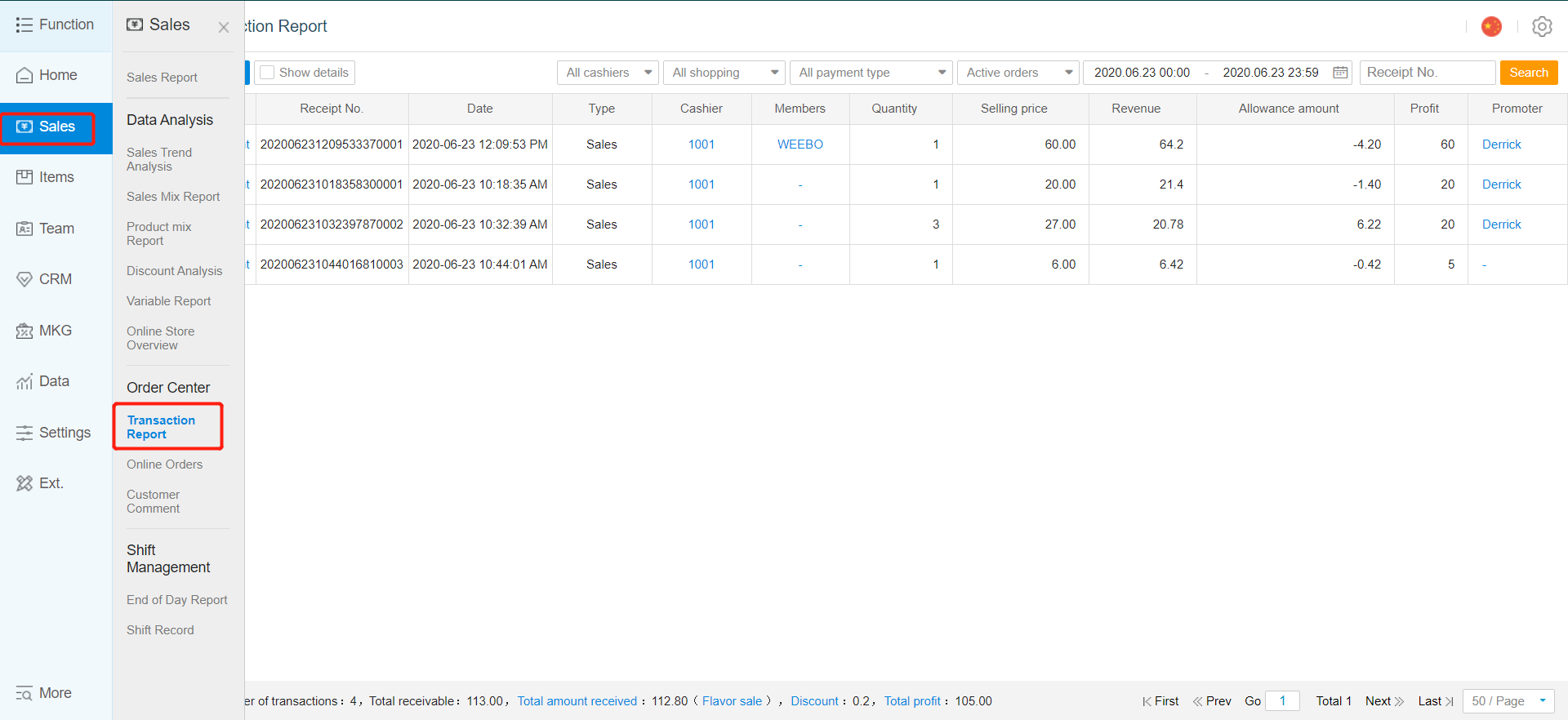
After you have logged in to your back office, click on "Sales Report" category.
-
Next, click on the "Transaction Report" sub-category.
-
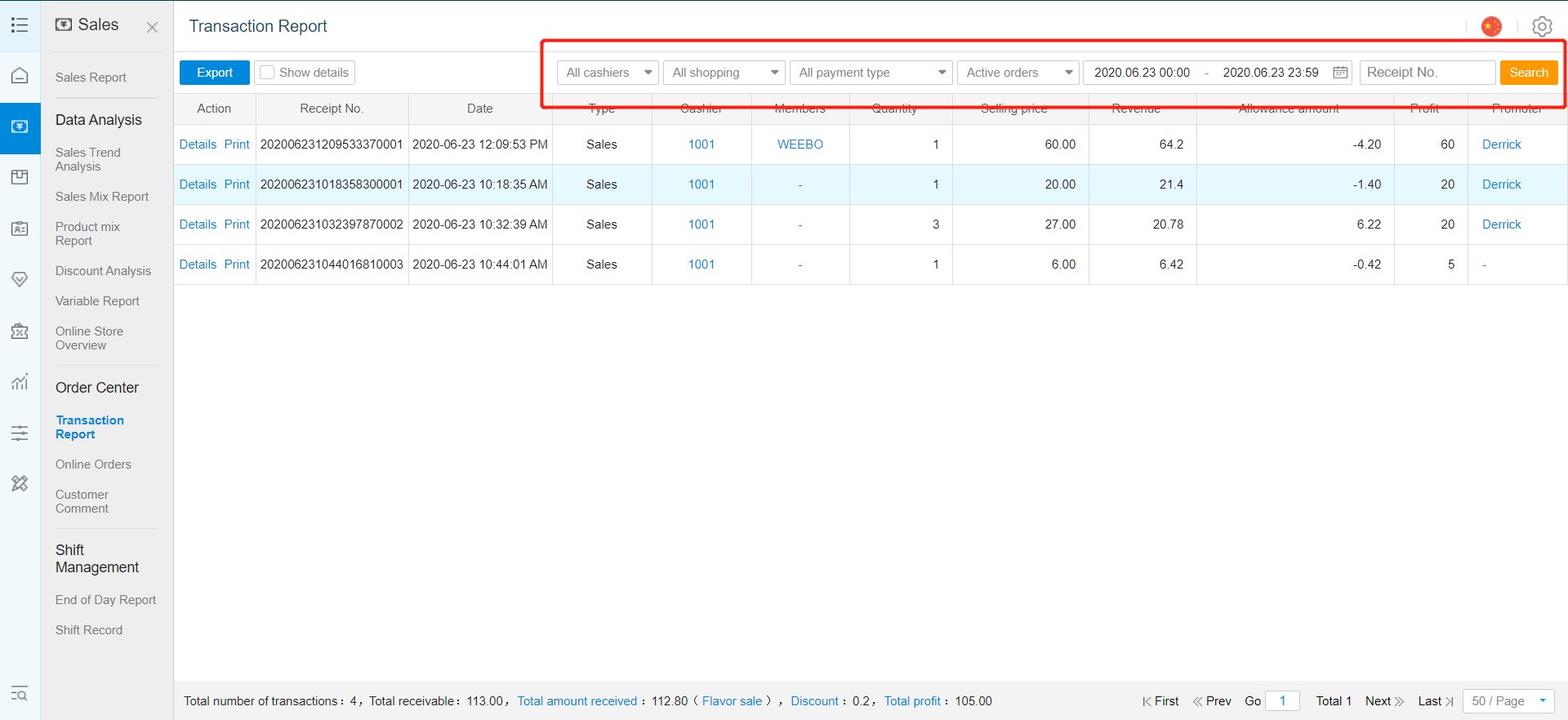
You can filter your search by selecting "Cashiers", "Payment Type", "Type Of Orders", "Receipt Number", "Start Date" and "End Date" by clicking on the respective areas highlighted in red.
-
Select all your desired search parameters.
-
After selecting your desired parameters and time frame for the search, click on "Search".
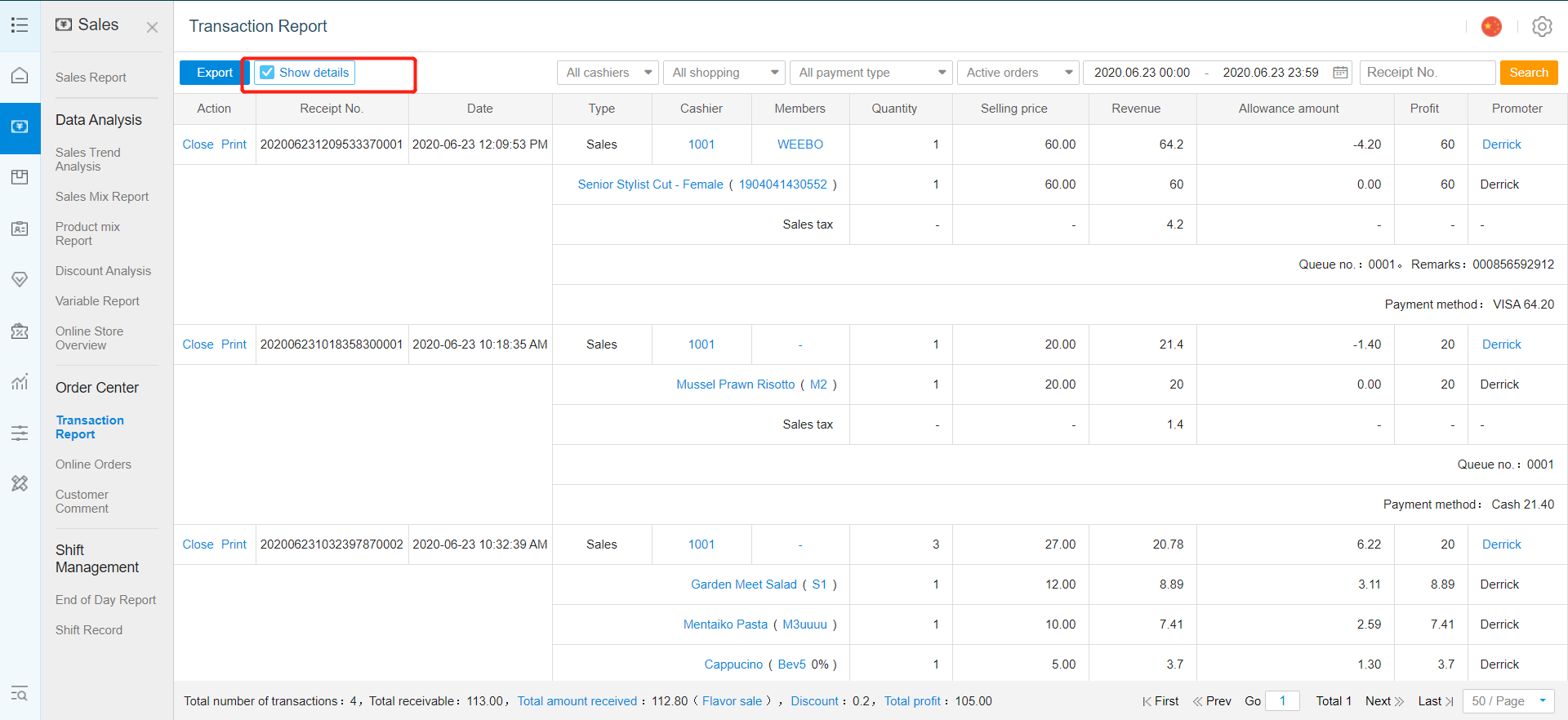
- To view details for all transactions search, tick the "Show Details" box.
- To view details for individual transaction, click on "Details".
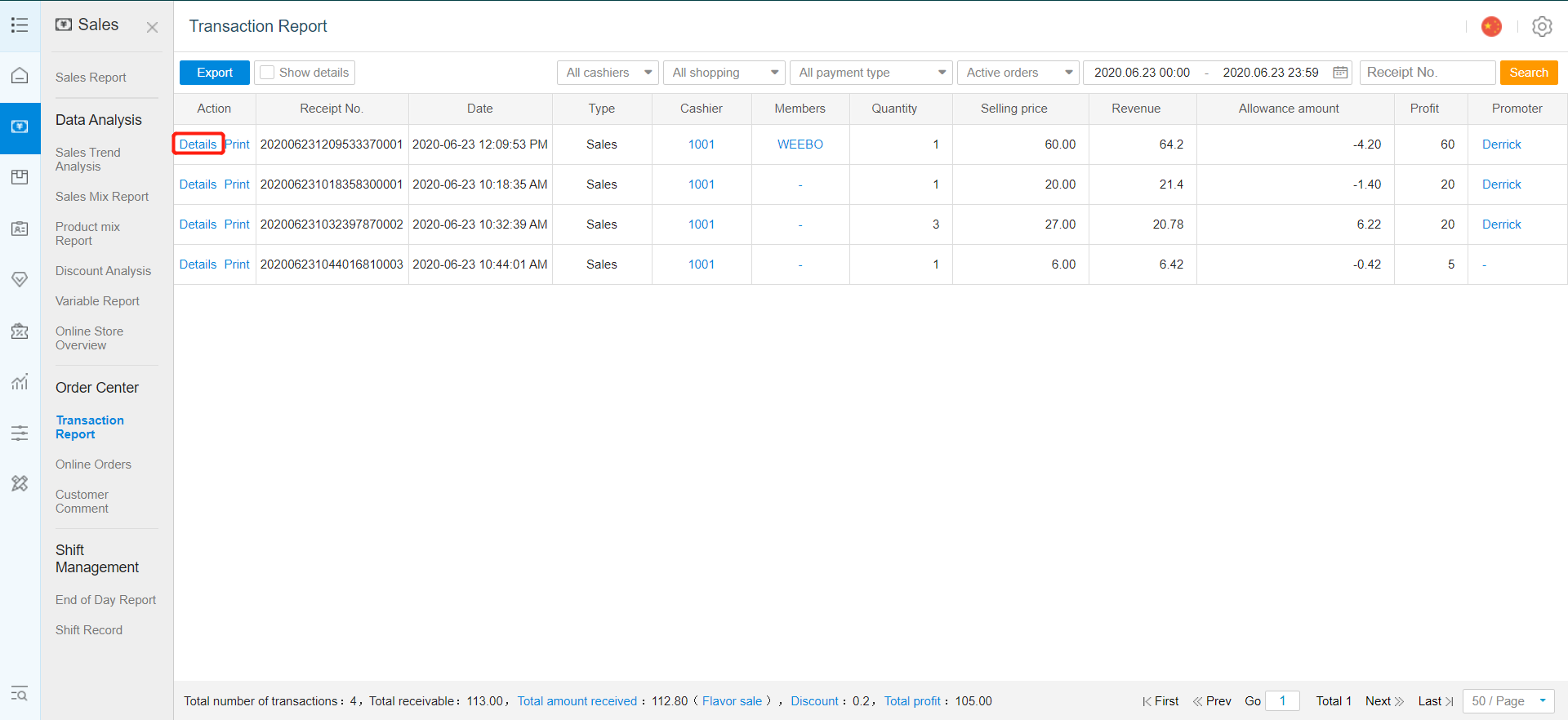
- To export the file, click on "Export". The exported file data will be based on parameters and time frame that you have searched.
Any Enquiries? Message us!
If you have any question or concern, please fill below and we’ll get back to you shortly.
Get in Touch with Us


7 Holland Village Way, #05-03/05 Tower Lobby B, One Holland Village, Singapore 275748

Call us for a Quote

+65 8771 8700
+65 6850 5177
Stay Connected
Copyright © Weebo Pte Ltd All Rights Reserved.