
How to mass change member info using excel template
There is no Mass Update function for members' setting in our back office. However, there is still a more efficient way to manage member info via the use of "Export" & "Import" option.
Follow the steps below to create a category:
-
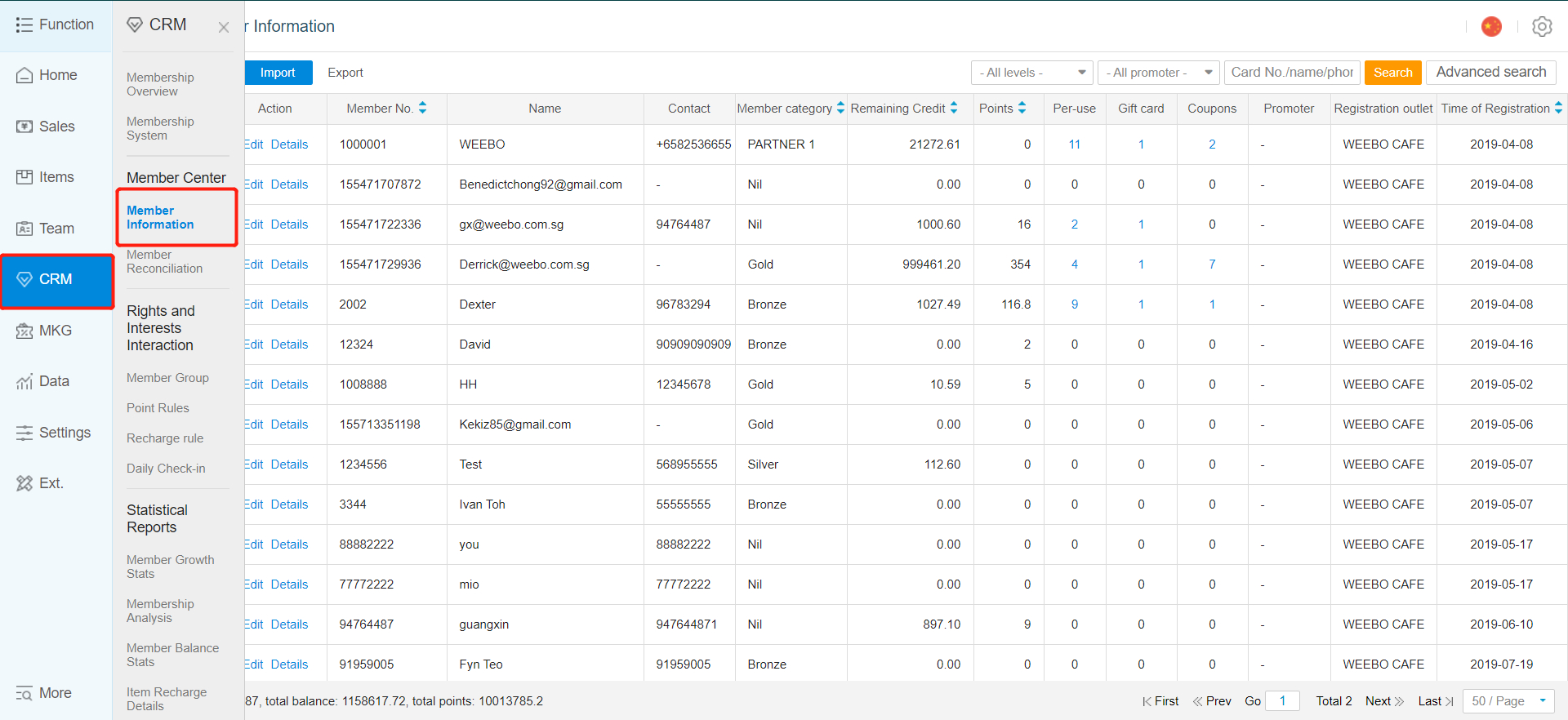
After you have logged in to your back office, click on "CRM" category
-
Next, click on the "Member Information" sub-category
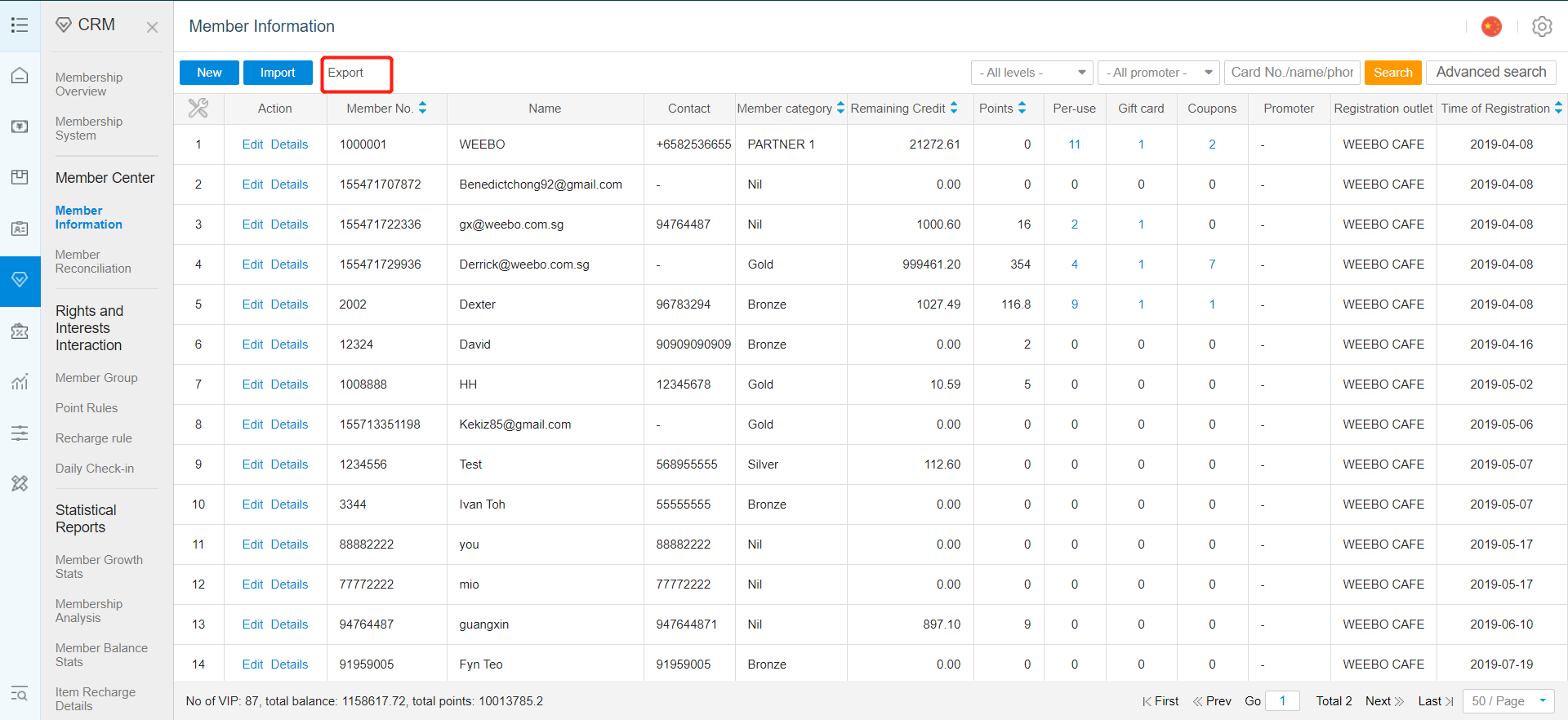
- Click on "Export" to export list of current active members out in Microsoft Excel format
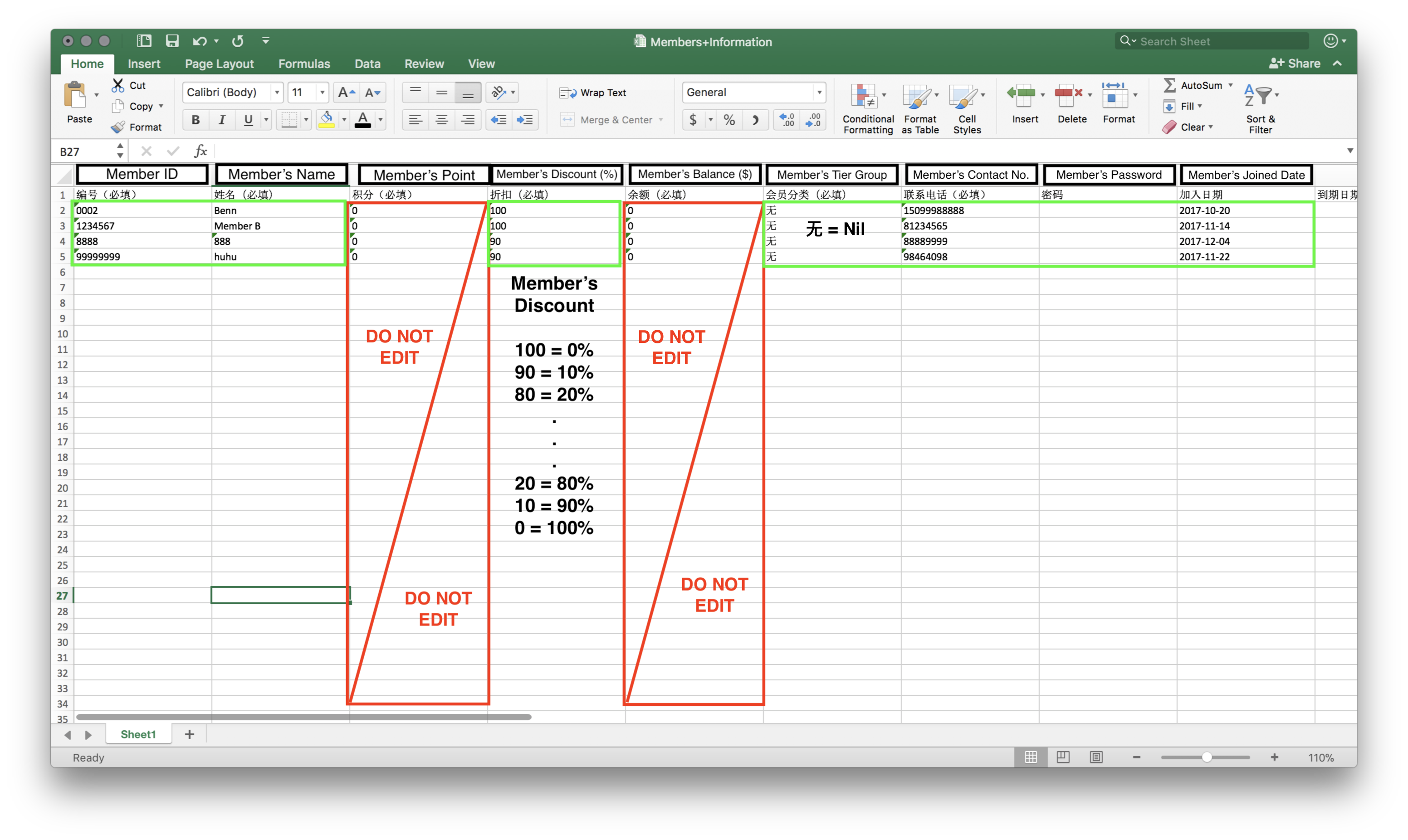
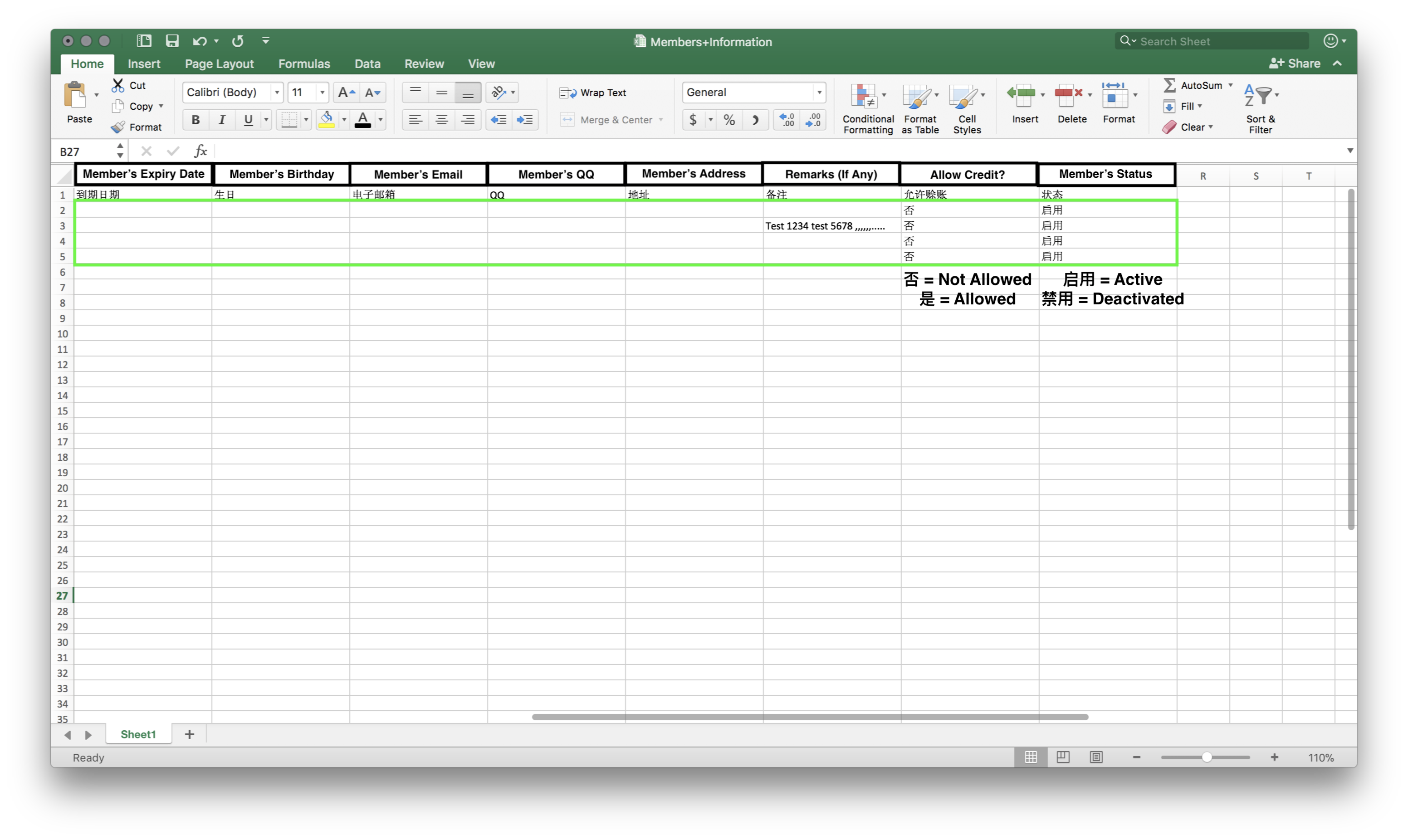
- To modify the data, simply replace the data within the green field. Do not modify any data in the "Do Not Edit" column.
-
Once done with the modification of data, remember to click on "Save" to save the changes made.
-
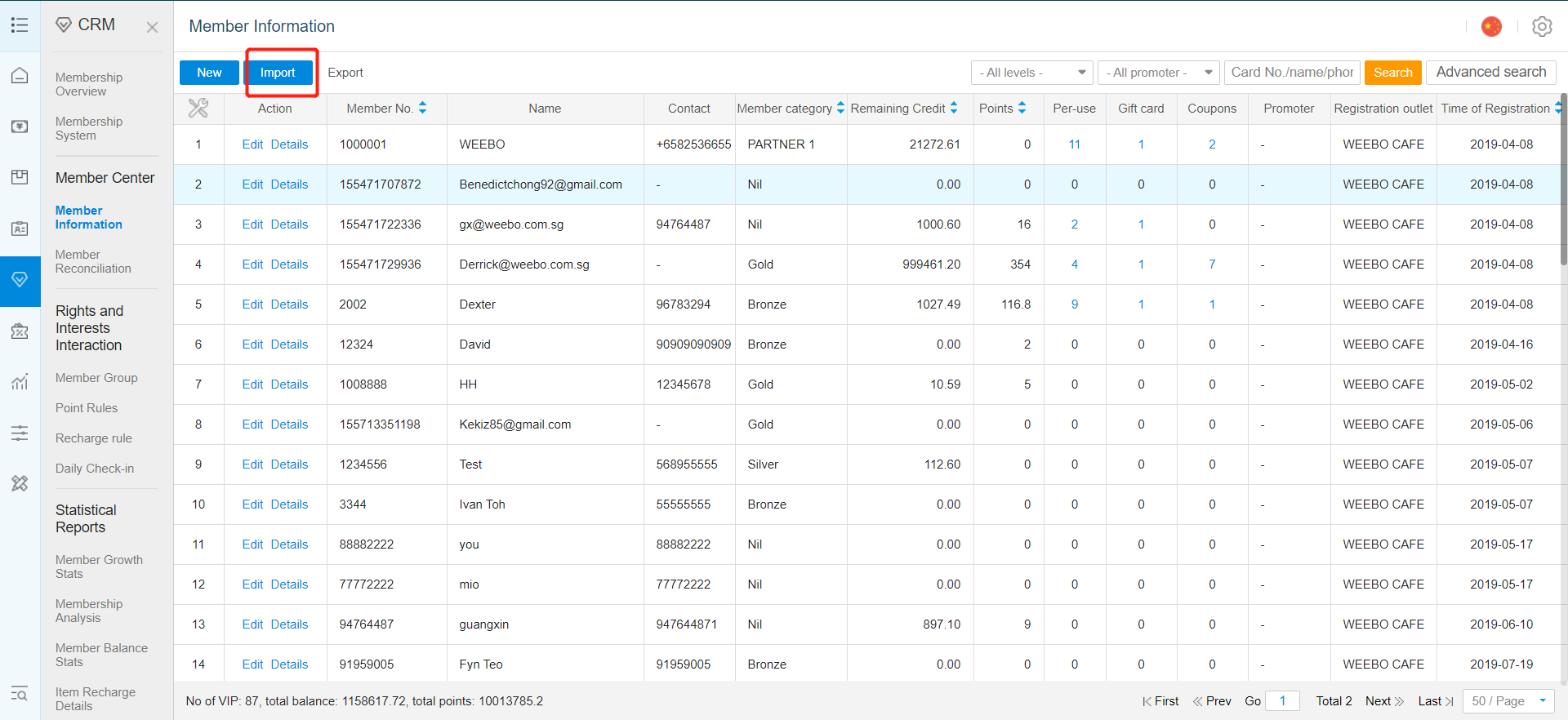
Click on "Import" to upload the newly saved Excel file to override the existing data.
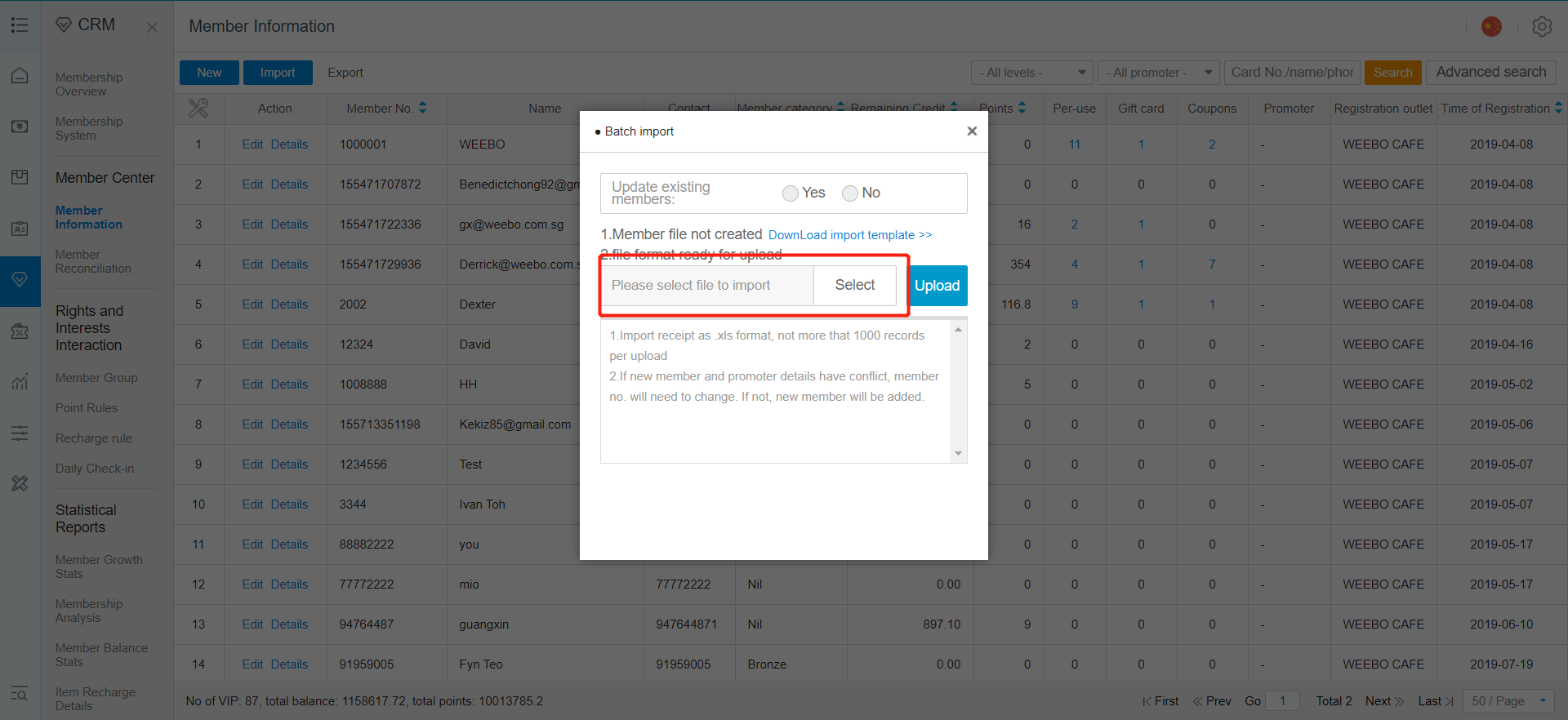
- Click on "Select" to choose your newly modified document.
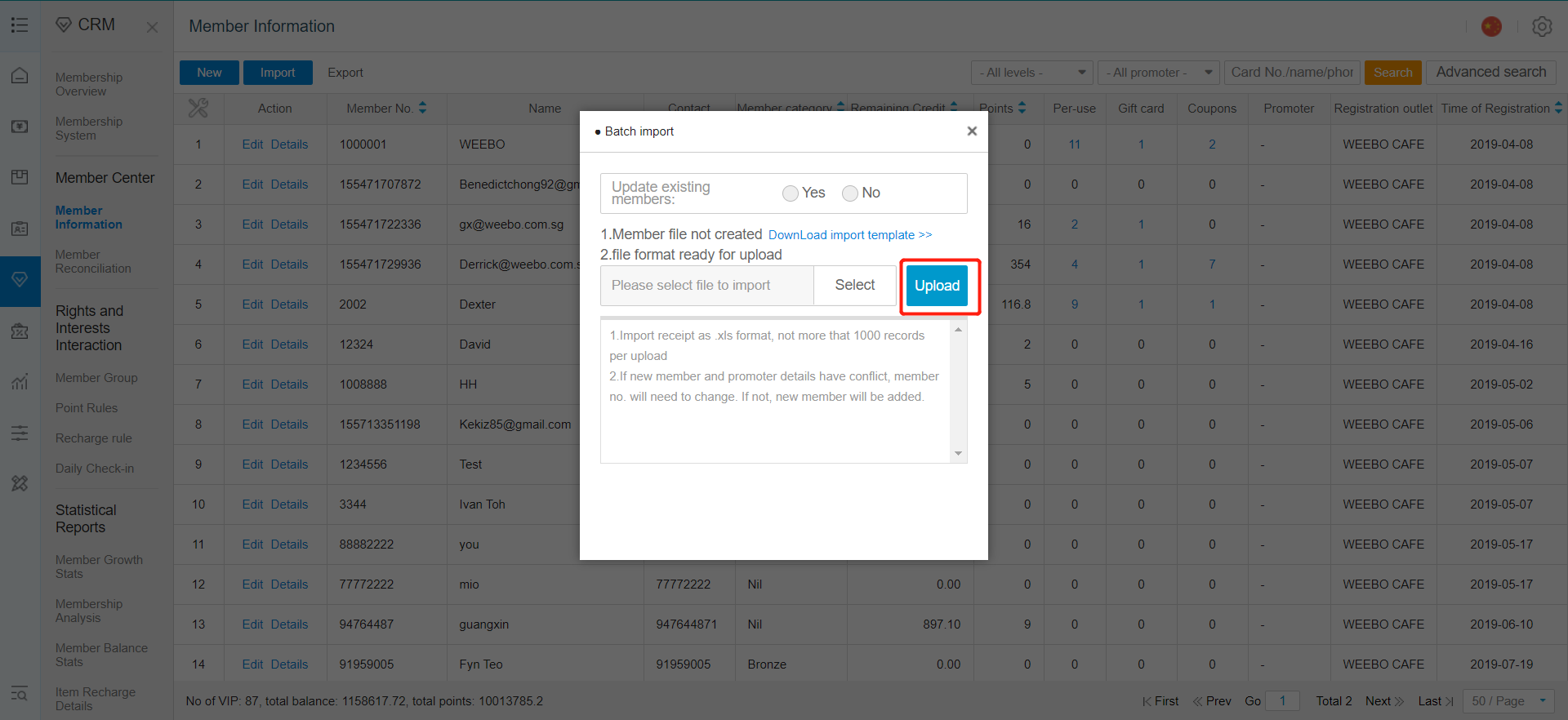
- After selection, click on "Upload".
- Successful data importation, old data has been replaced with the new changes.
Any Enquiries? Message us!
If you have any question or concern, please fill below and we’ll get back to you shortly.
Get in Touch with Us


7 Holland Village Way, #05-03/05 Tower Lobby B, One Holland Village, Singapore 275748

Call us for a Quote

+65 8771 8700
+65 6850 5177
Stay Connected
Copyright © Weebo Pte Ltd All Rights Reserved.