
How to enable inventory warning
- After you have logged in to your back office, click on "Product" category
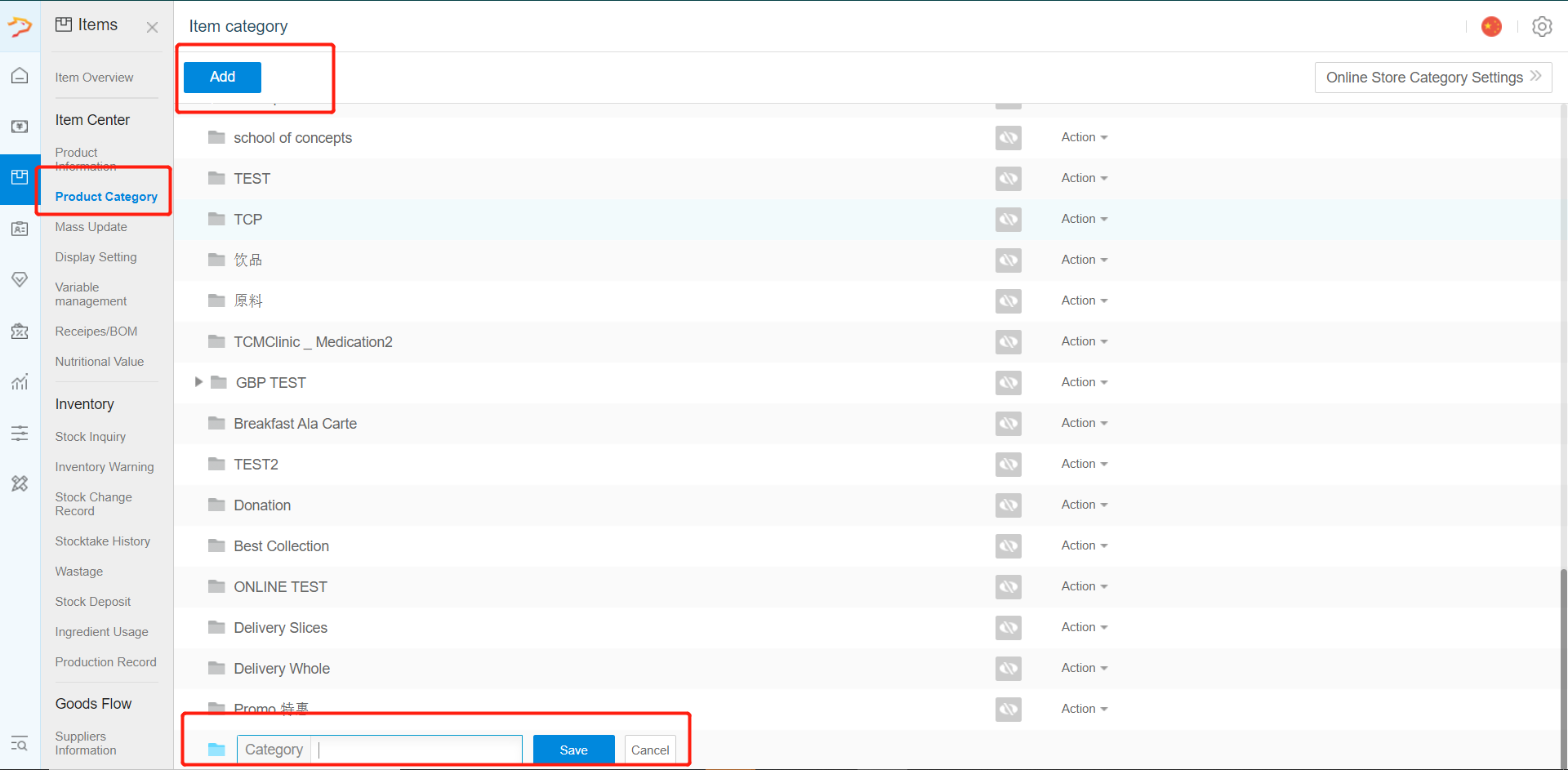
- Create a Product Category for your materials. E.G.: "Raw Materials"
(Remember to hide it if you do not want it to appear on your POS menu)
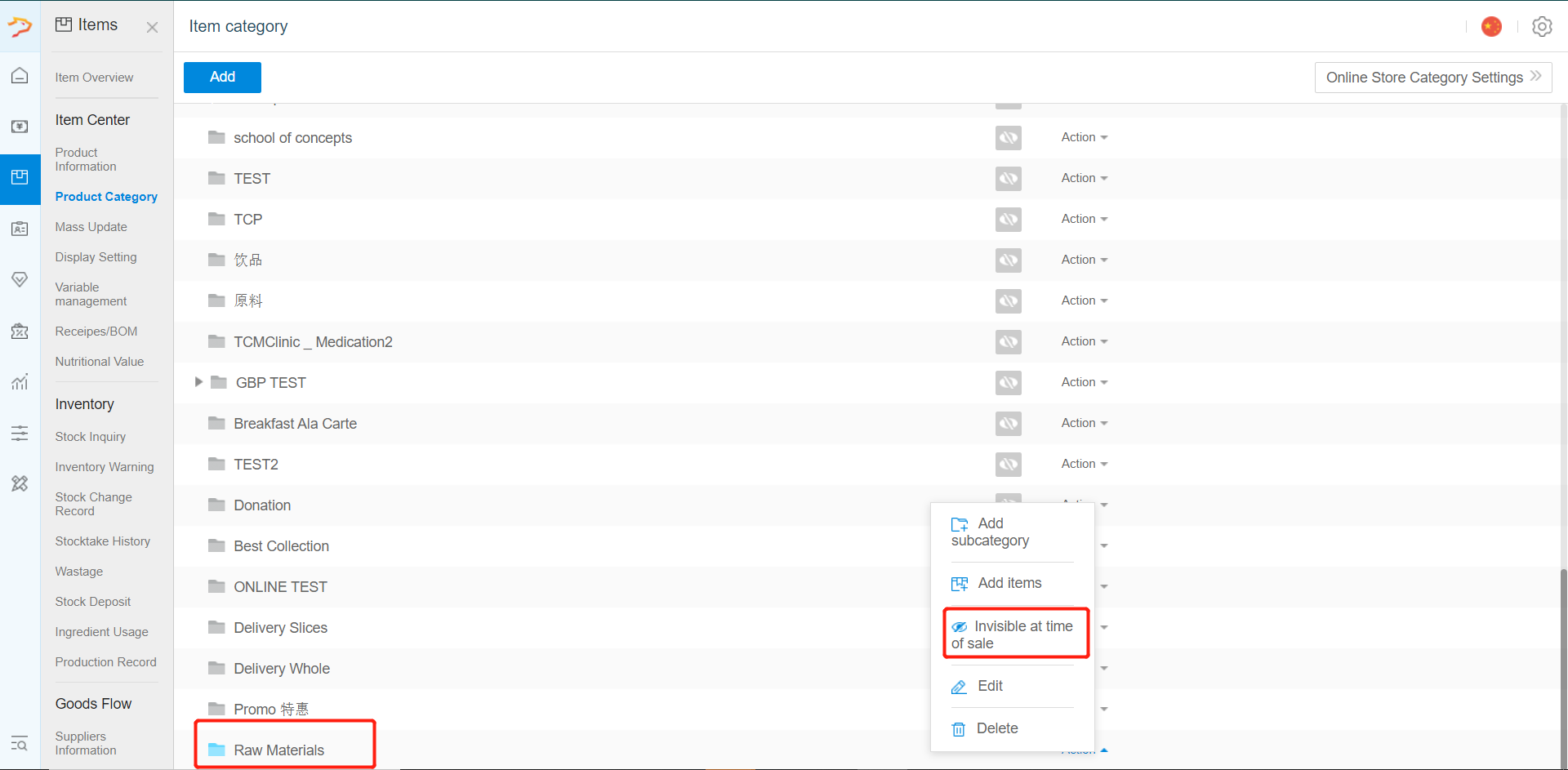
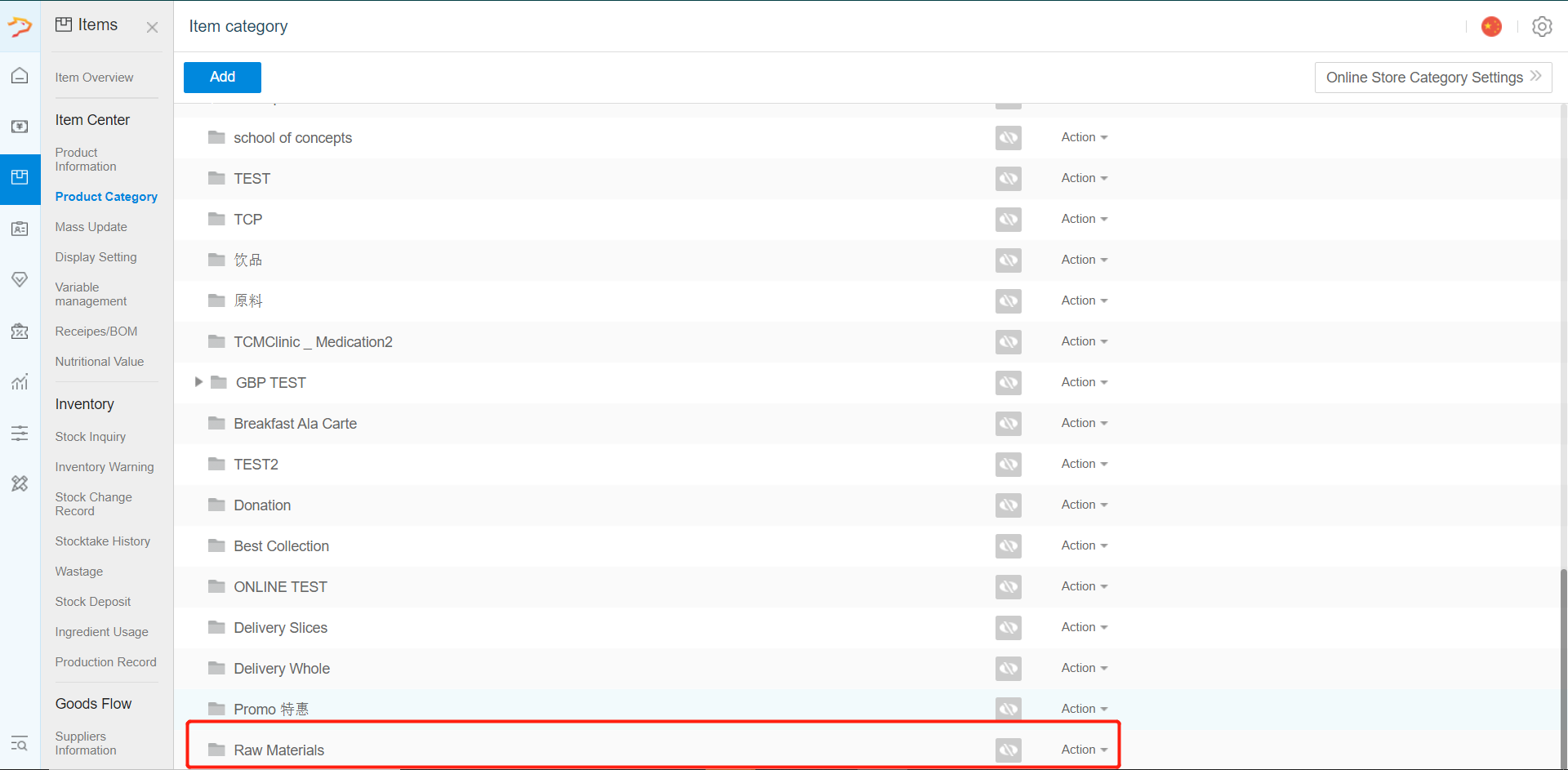
- After creating the category, you need to create your required material as a product.
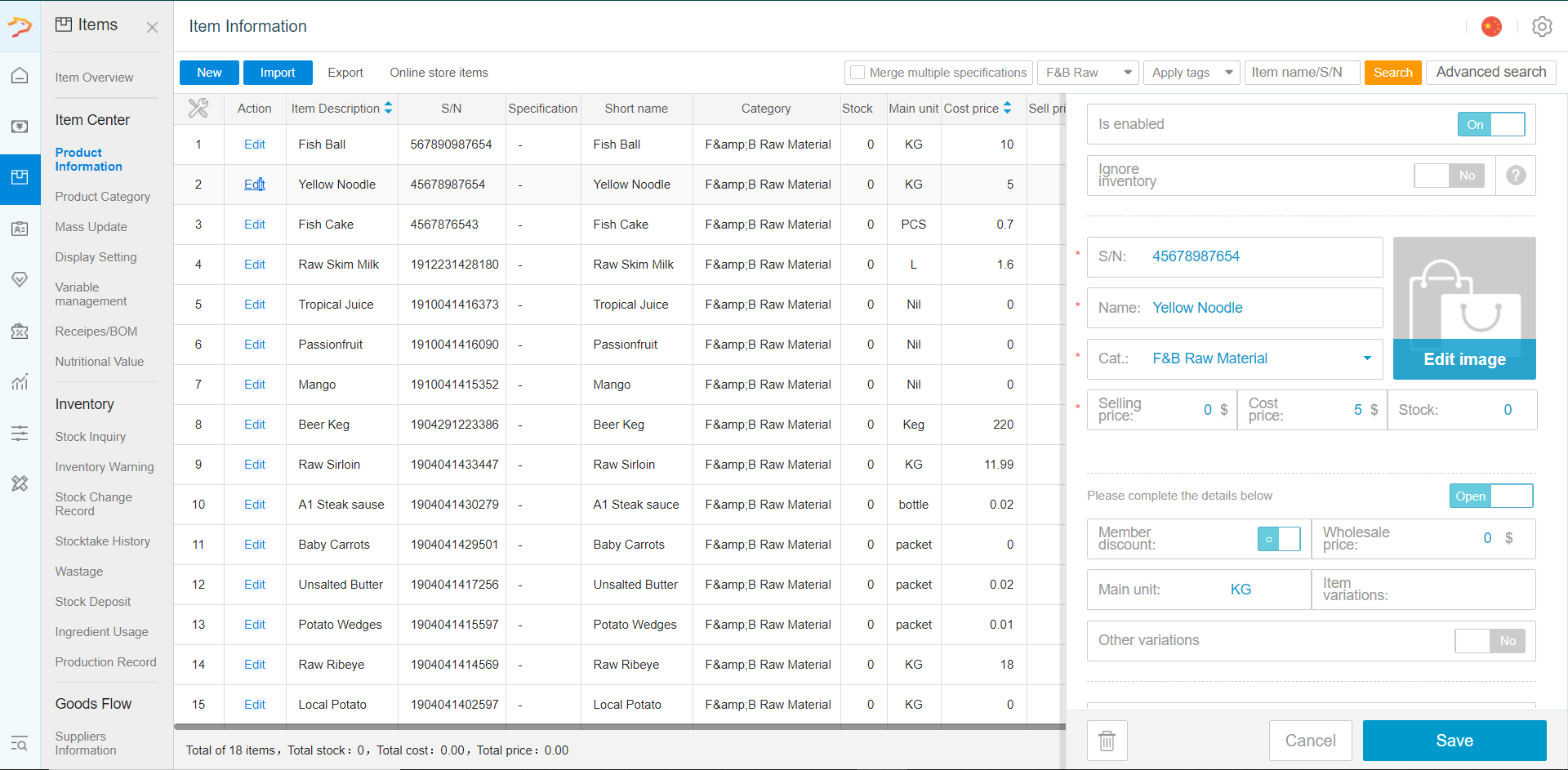
- Select the Unit of Measurement (UOM) for your material.
Should you require different UOM for different products, simply click on "Edit" to add more UOM.
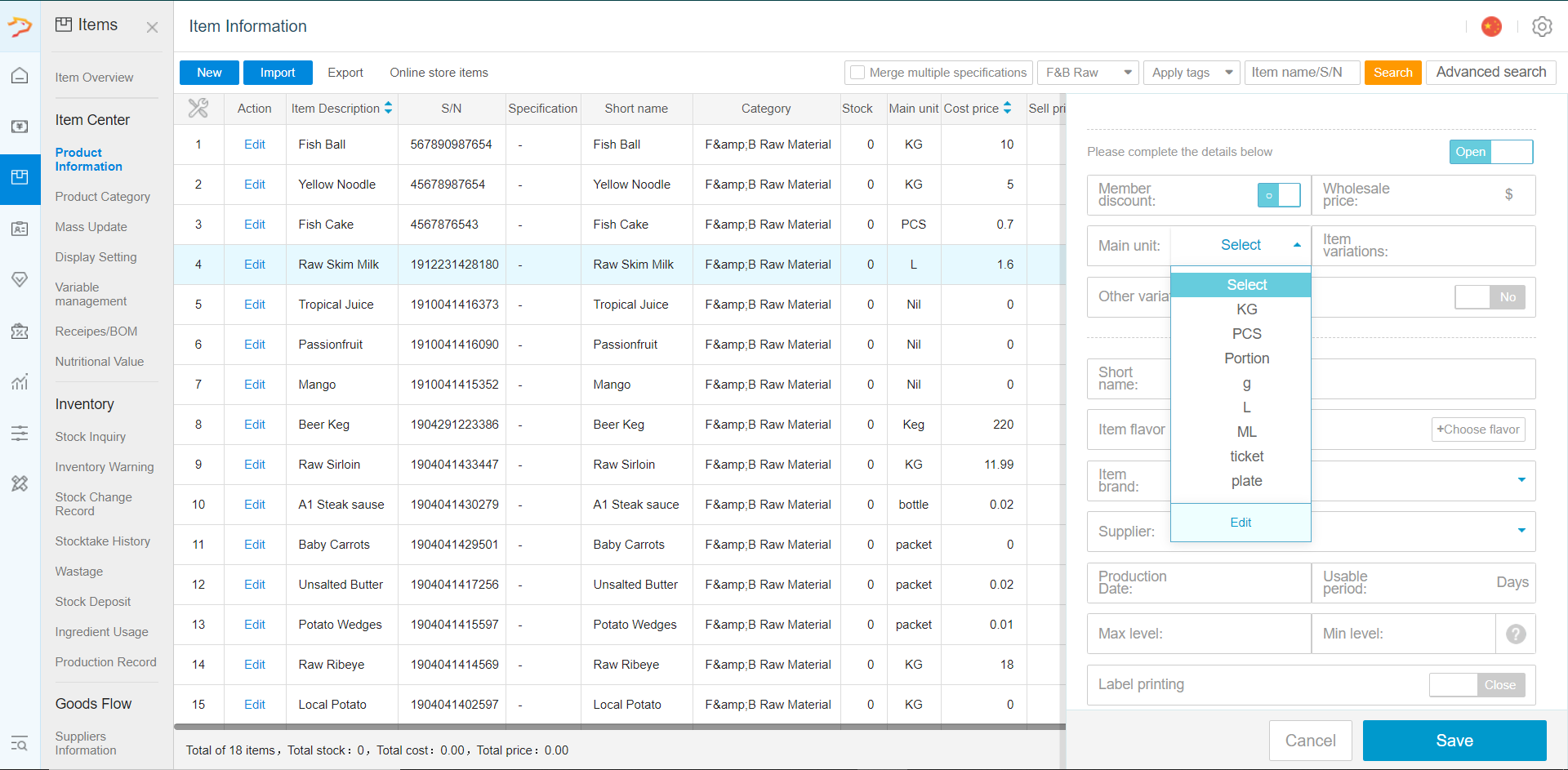
Key in the Max Level and Minimum Level of stock respectively.
If a stock exceeds the Max Level or goes below the Minimum Level, an inventory warning will be created.
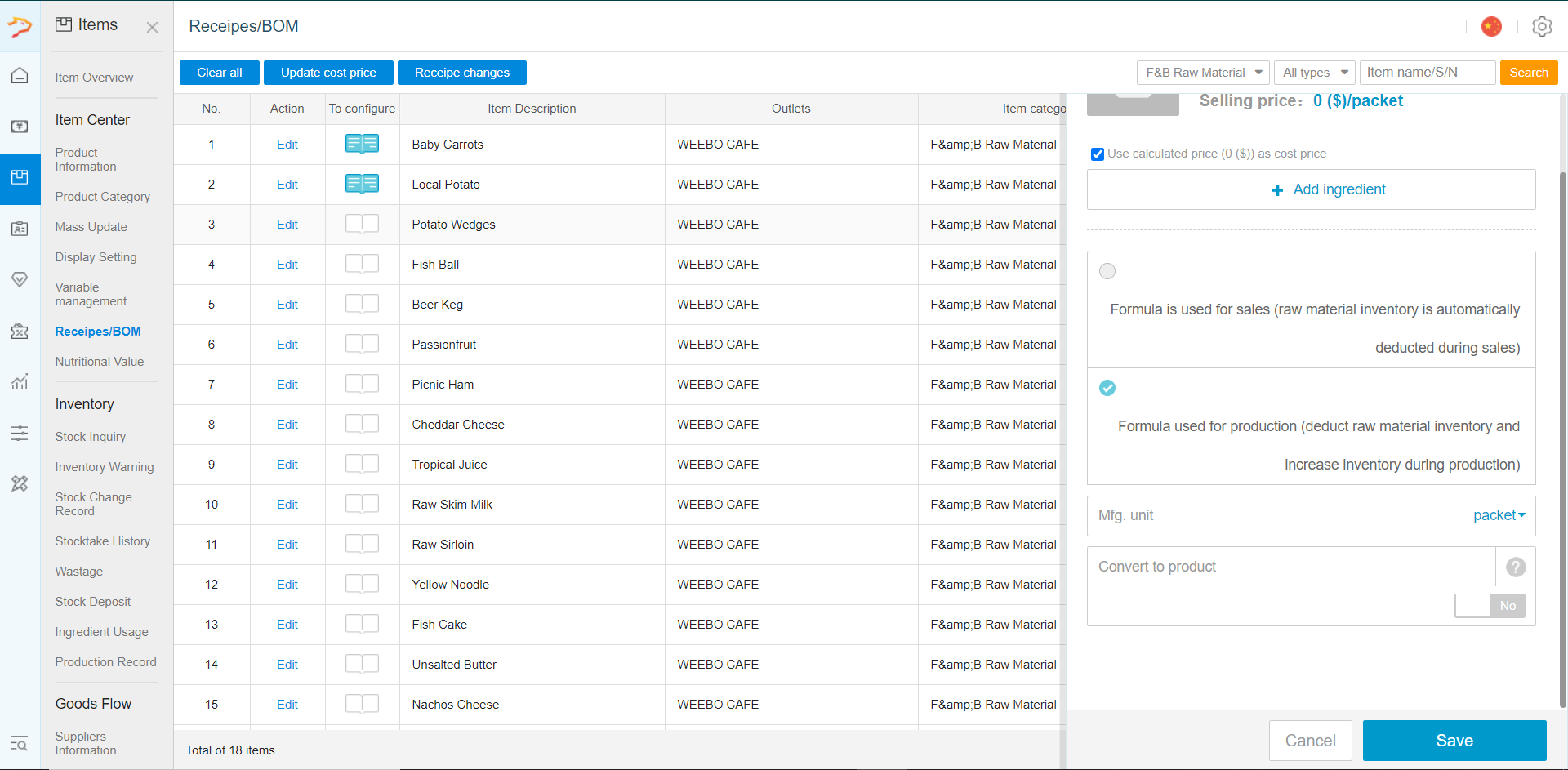
- After adding the materials required, now you need to click on "edit" to ass your materials to your recipes an ingredient under "Product" - "Recipes".
Need help? WhatsApp us +65 8508 9618
Any Enquiries? Message us!
If you have any question or concern, please fill below and we’ll get back to you shortly.
Get in Touch with Us


7 Holland Village Way, #05-03/05 Tower Lobby B, One Holland Village, Singapore 275748

Call us for a Quote

+65 8771 8700
+65 6850 5177
Stay Connected
Copyright © Weebo Pte Ltd All Rights Reserved.