
How to create a new cashier?
-
Login to your back office
-
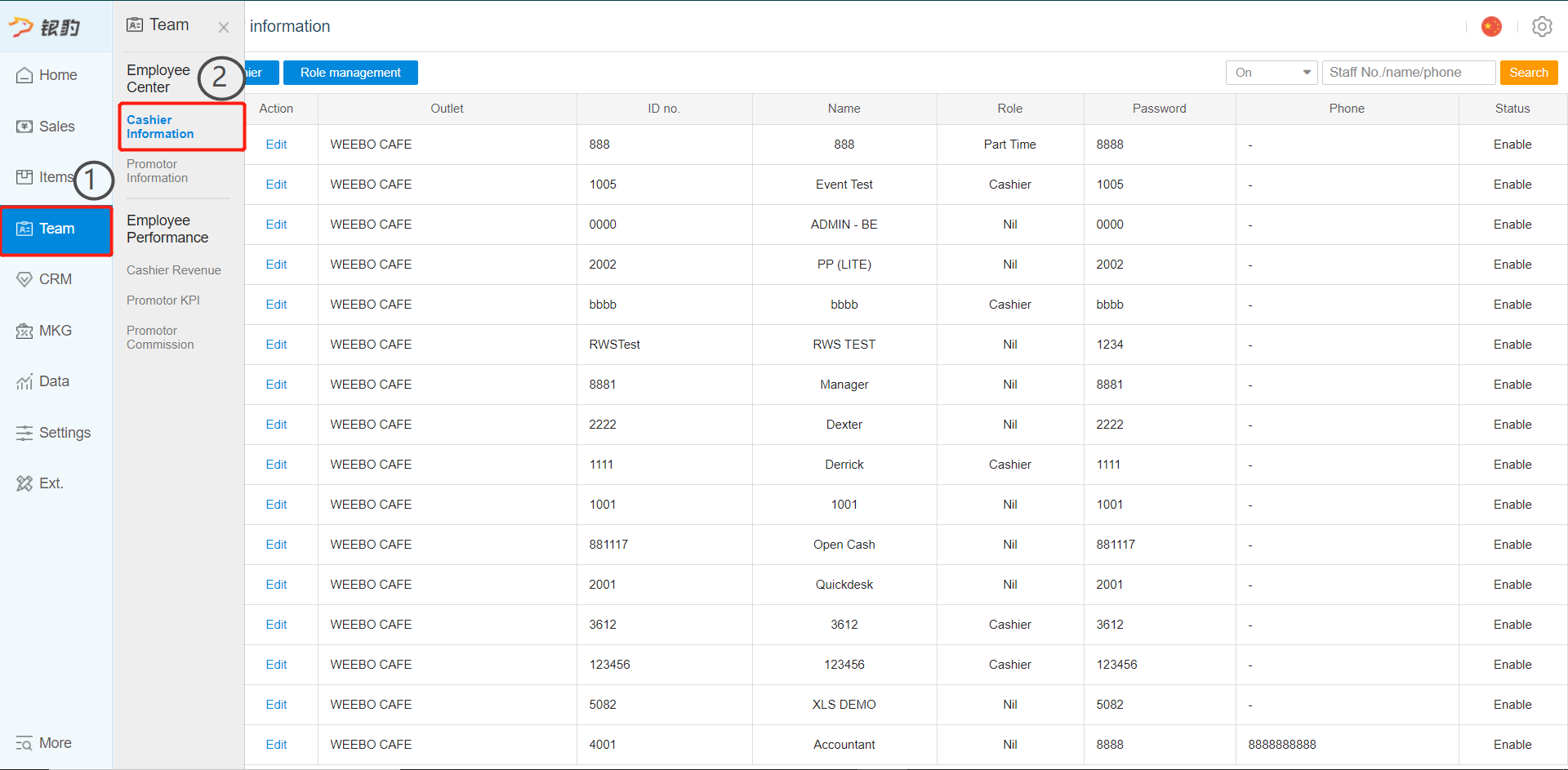
Click on "Cashier's Information" subcategory under Team main category
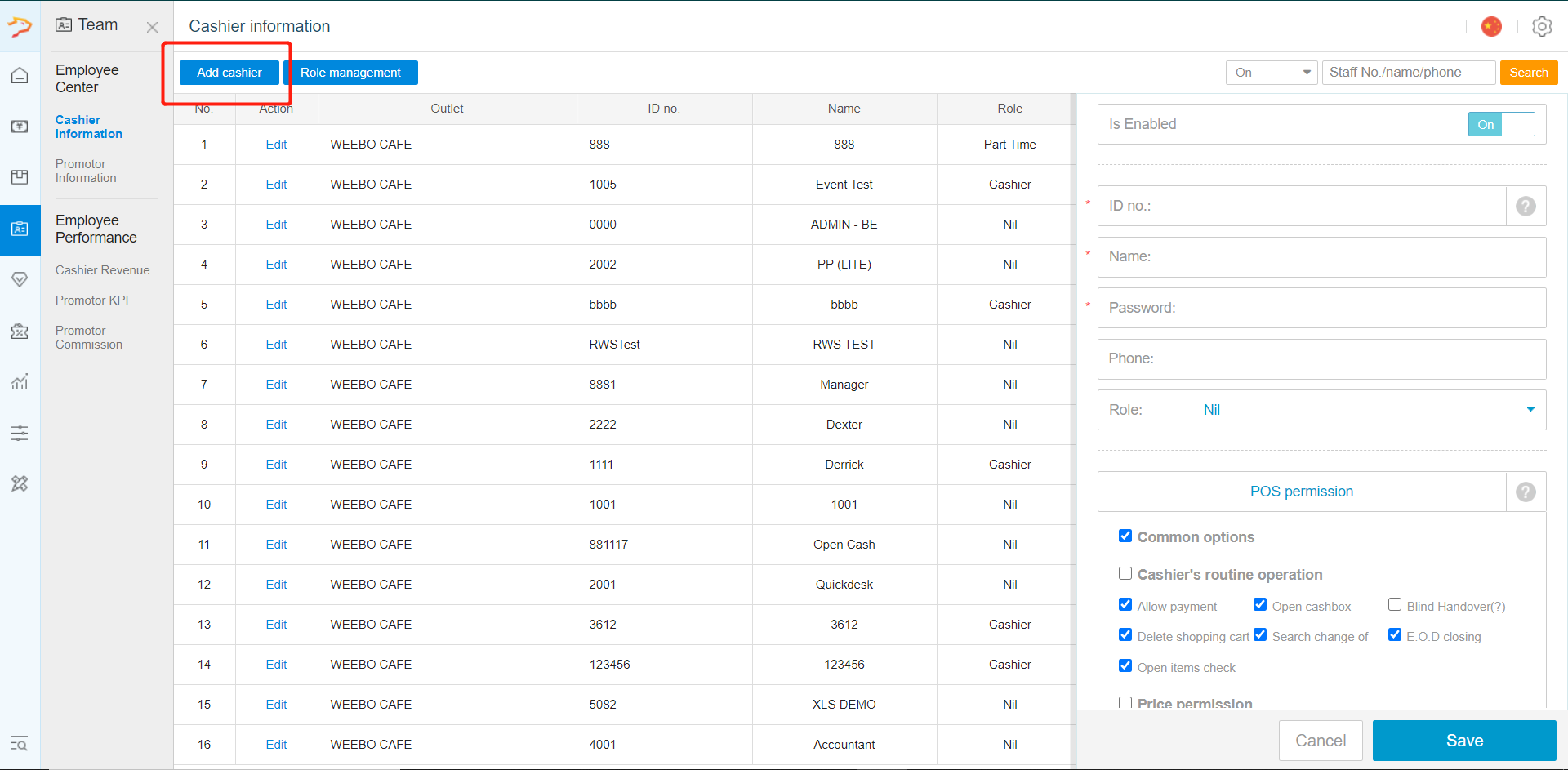
- Click on "Add Cashier" to create a new cashier
- Enter the respective information (fields marked with * means that it is compulsory)
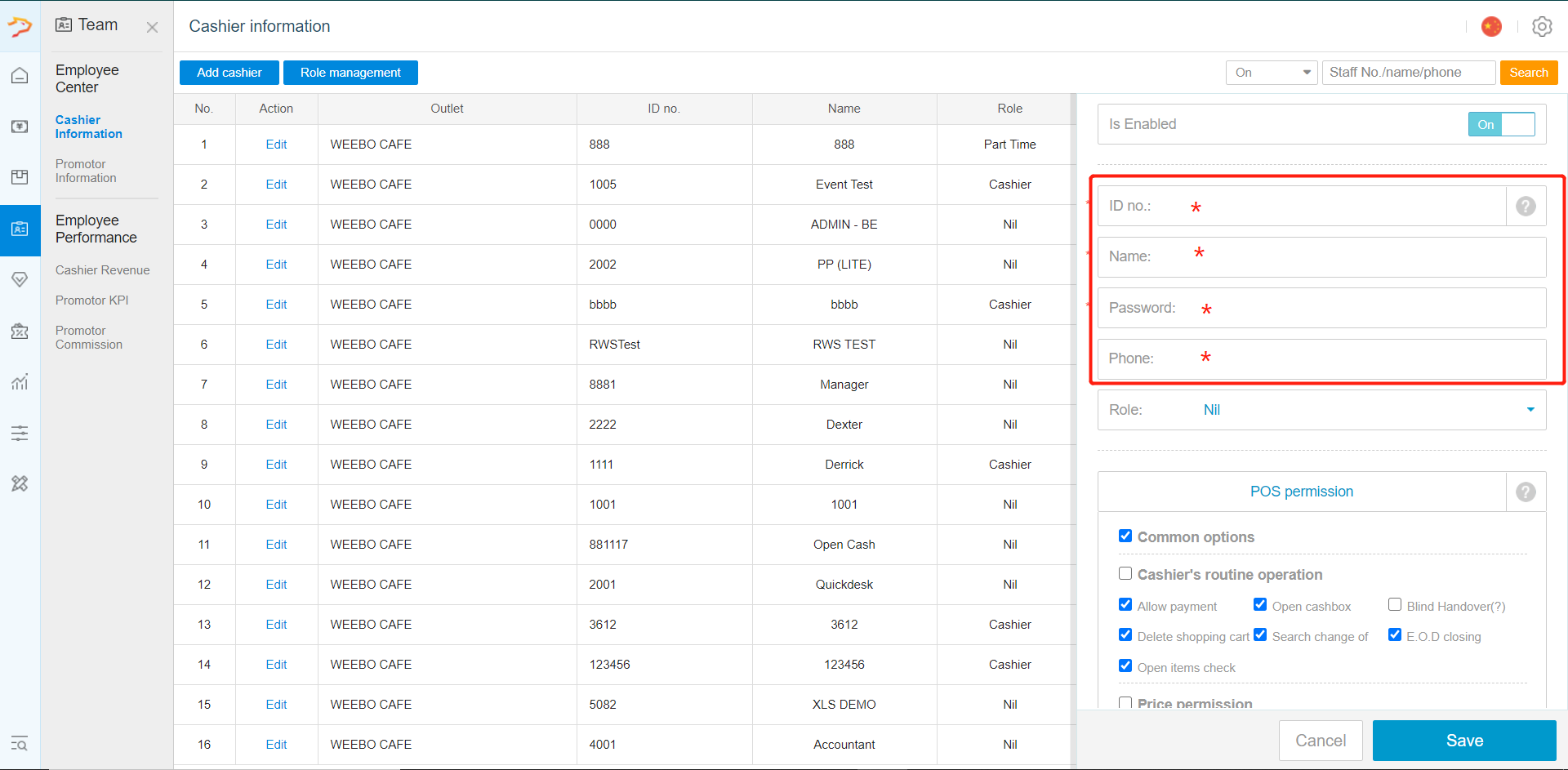
(1) ID No.; cashier's login ID
(2) Name; cashier's name
(3) Password; cashier's login password
(4) Phone; cashier's phone number (optional)
(5) Role; select a predefined role for the cashier (cashier's rights will automatically be adjusted if a role is assigned)
*NOTE: "ID No." is a unique ID assigned to each member and cannot be re-used once taken within the system (similar to a barcode)
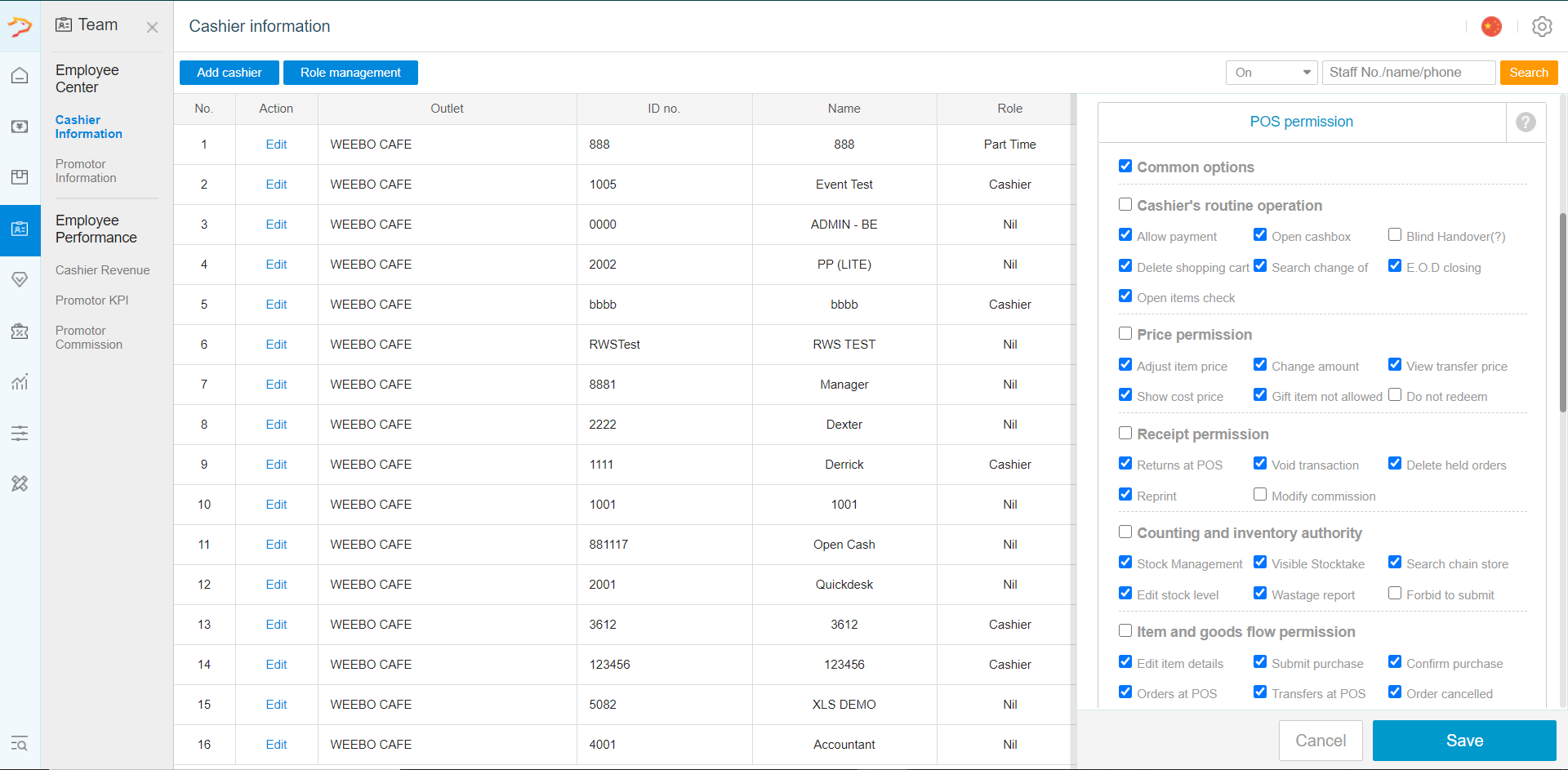
- Select the specific front and back office rights for the cashier (this step can be skipped if roles are predefined via "Role Management")
-
Once done, click on "Save"
-
To edit existing cashier's info, click on "Edit"
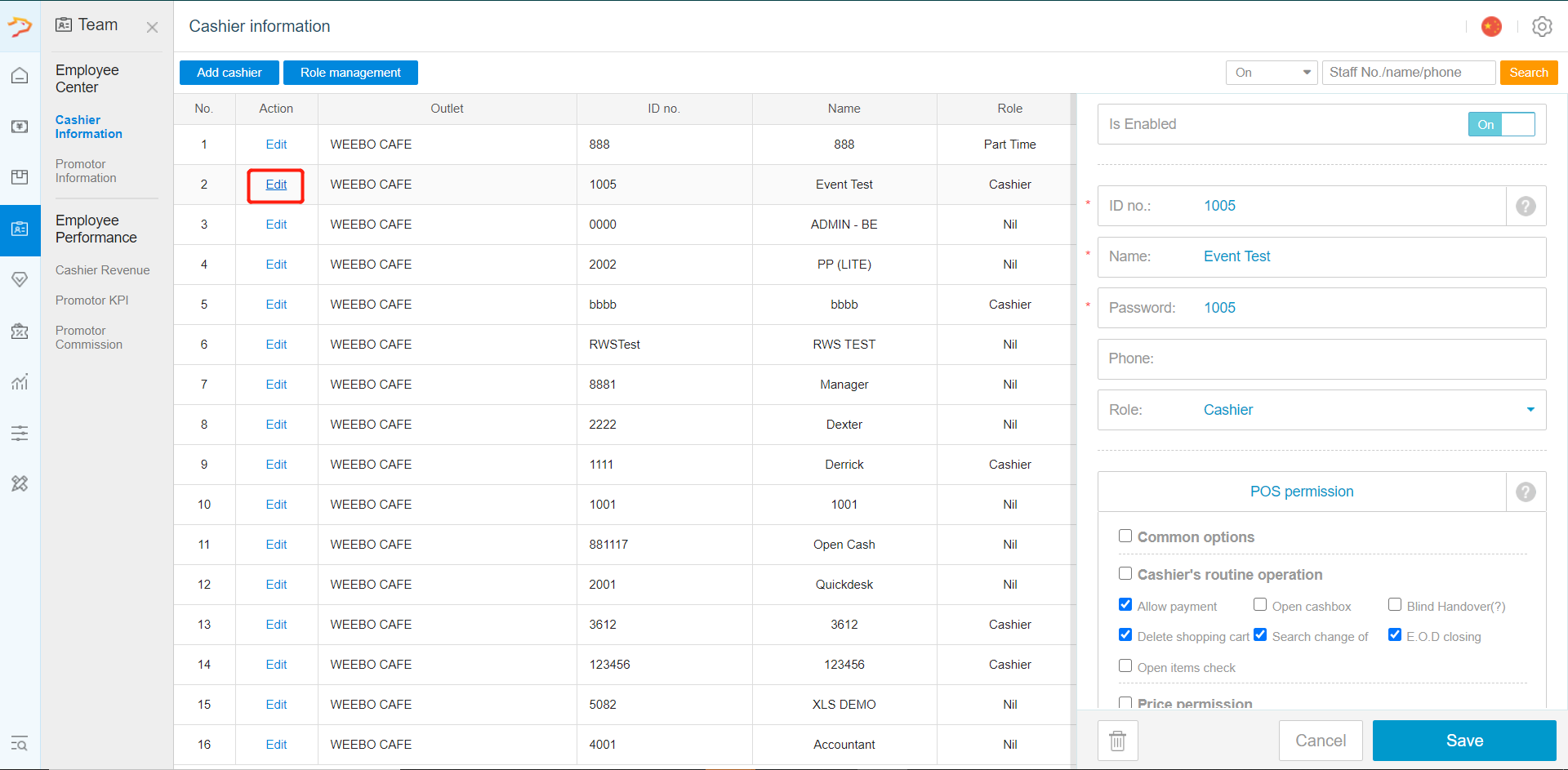
NOTE:* Once a cashier information has been saved, the "ID no." can no longer be edited
Any Enquiries? Message us!
If you have any question or concern, please fill below and we’ll get back to you shortly.
Get in Touch with Us


7 Holland Village Way, #05-03/05 Tower Lobby B, One Holland Village, Singapore 275748

Call us for a Quote

+65 8771 8700
+65 6850 5177
Stay Connected
Copyright © Weebo Pte Ltd All Rights Reserved.