
How to add a modifier to product(s)
All modifiers created are not automatically attached to your products. However, you are able to attach each variable group to different individual or group of products to cater to your business needs. There is also no limit as to how many variable groups you can attach to a product.
Follow the steps below to add a modifier to product(s):
-
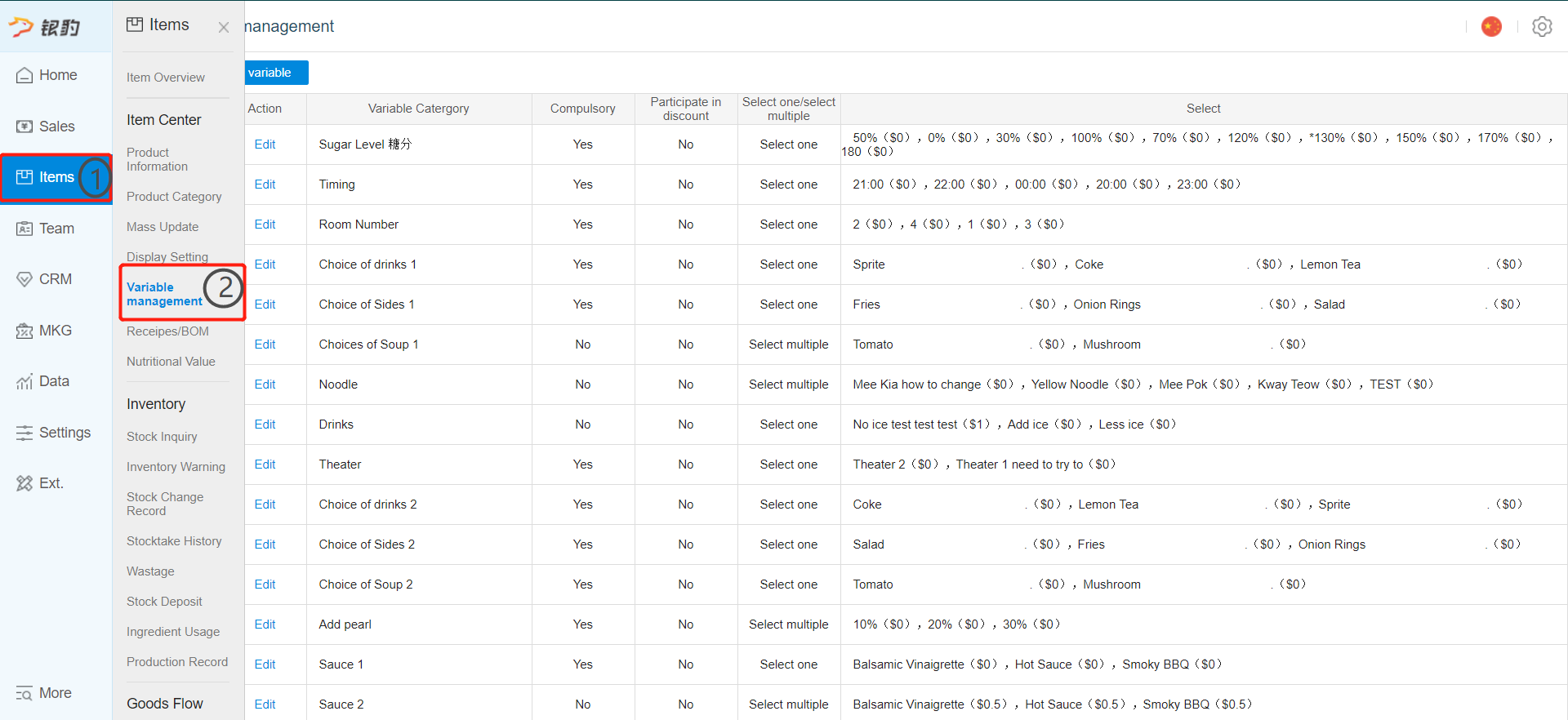
After you have logged in to your back office, click on "Product" category
-
Next, click on the "Variable Management" sub-category
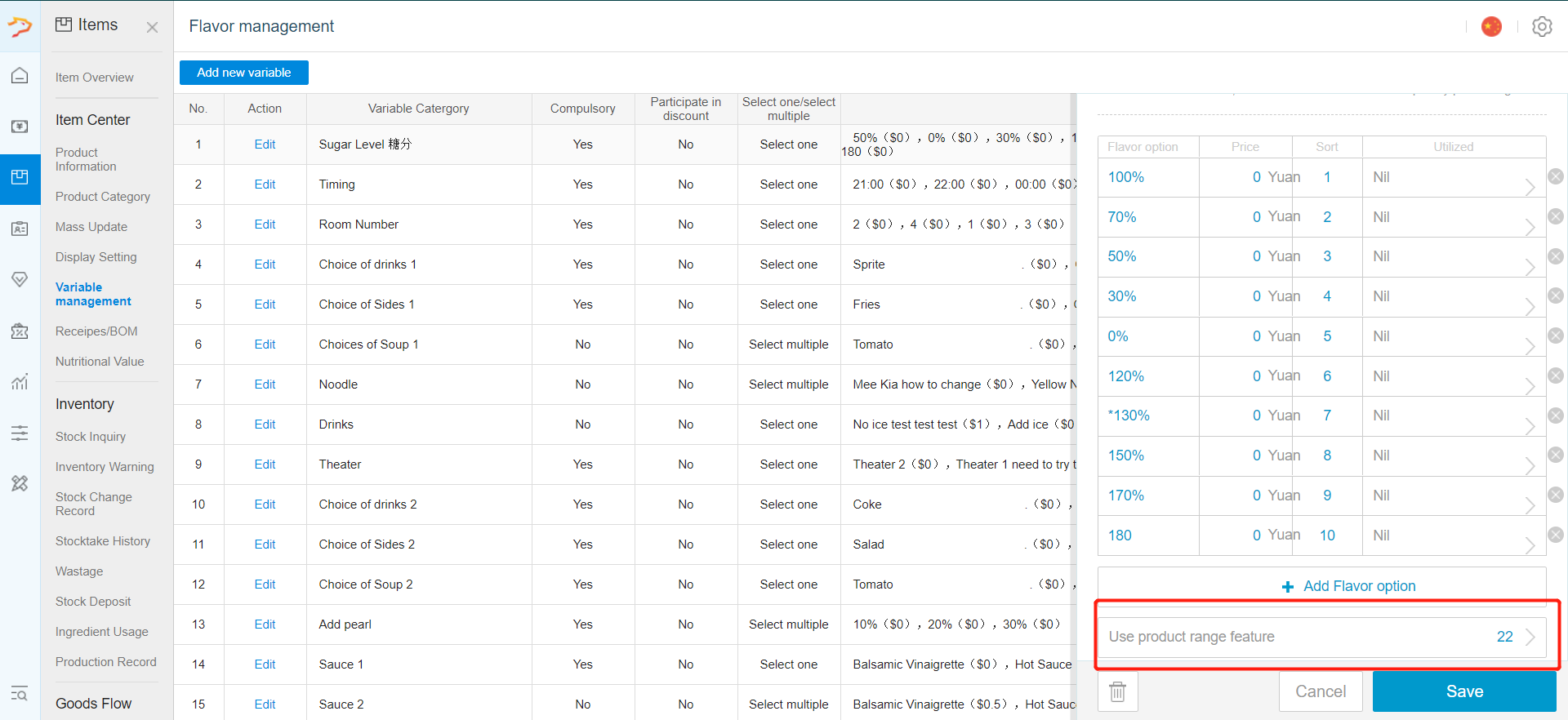
- Scroll all the way down the pop-up menu and click on "Use product range feature".
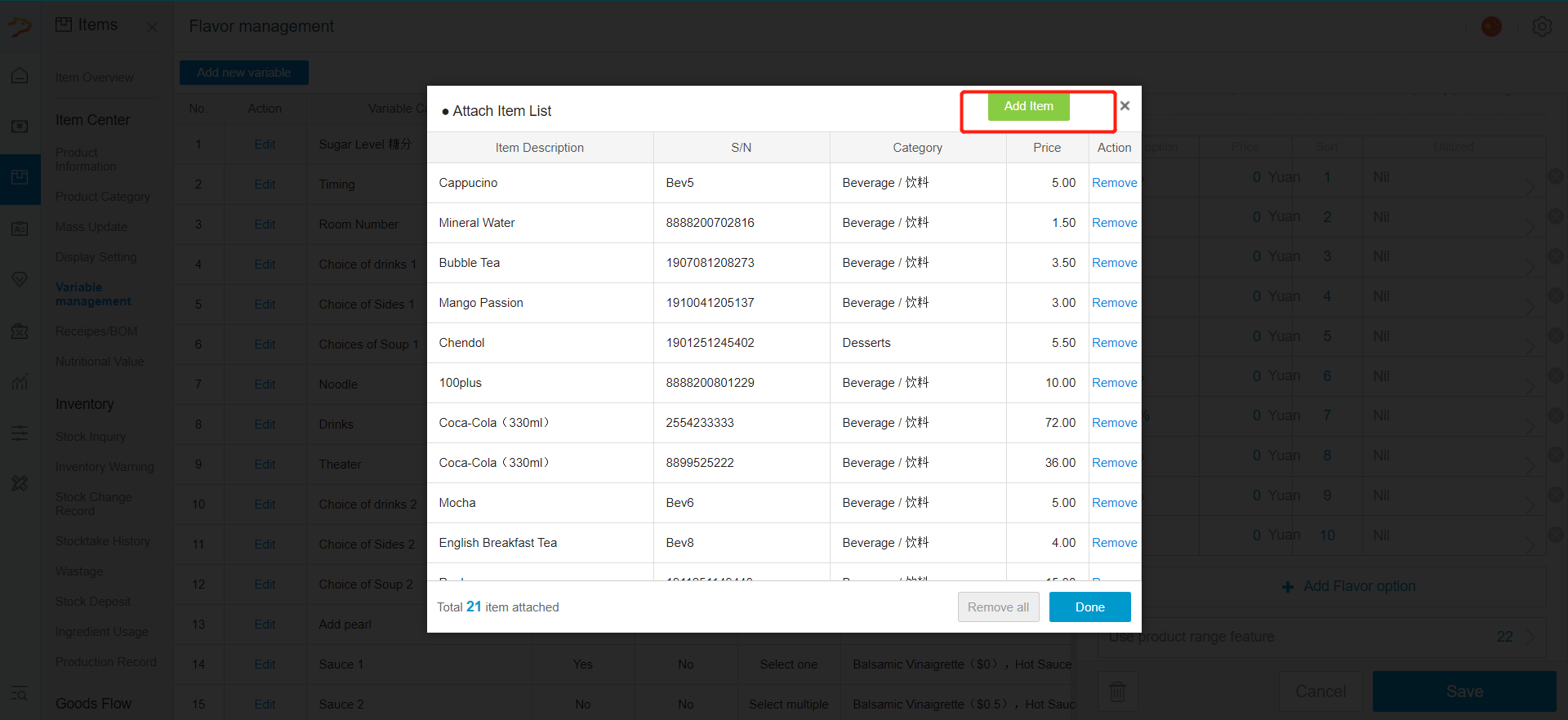
- To attach the variable category to product(s), click on "Add item"
- Search for the product(s) that you want to select by filtering through category, product name or barcode
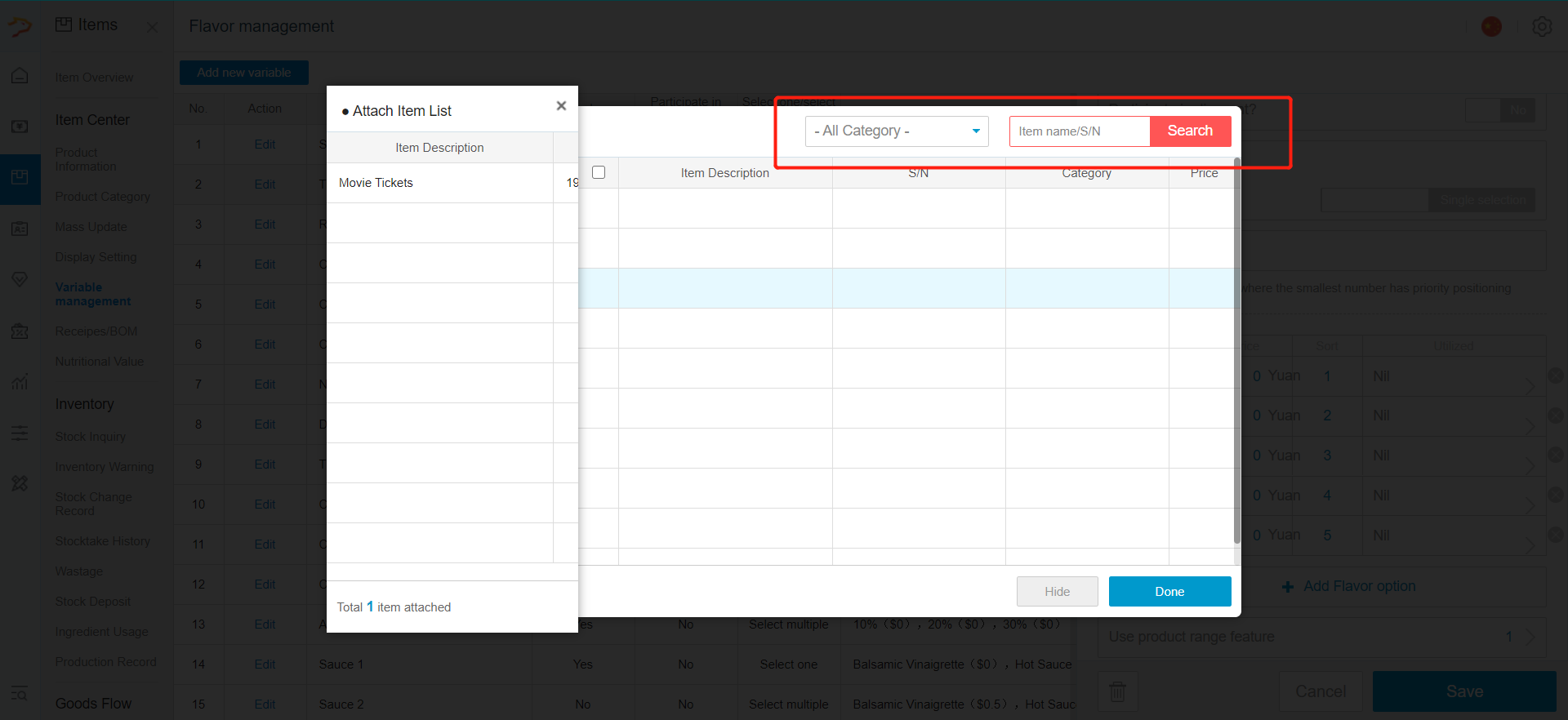
- Check the boxes for products() that you wish to attach to the variable category
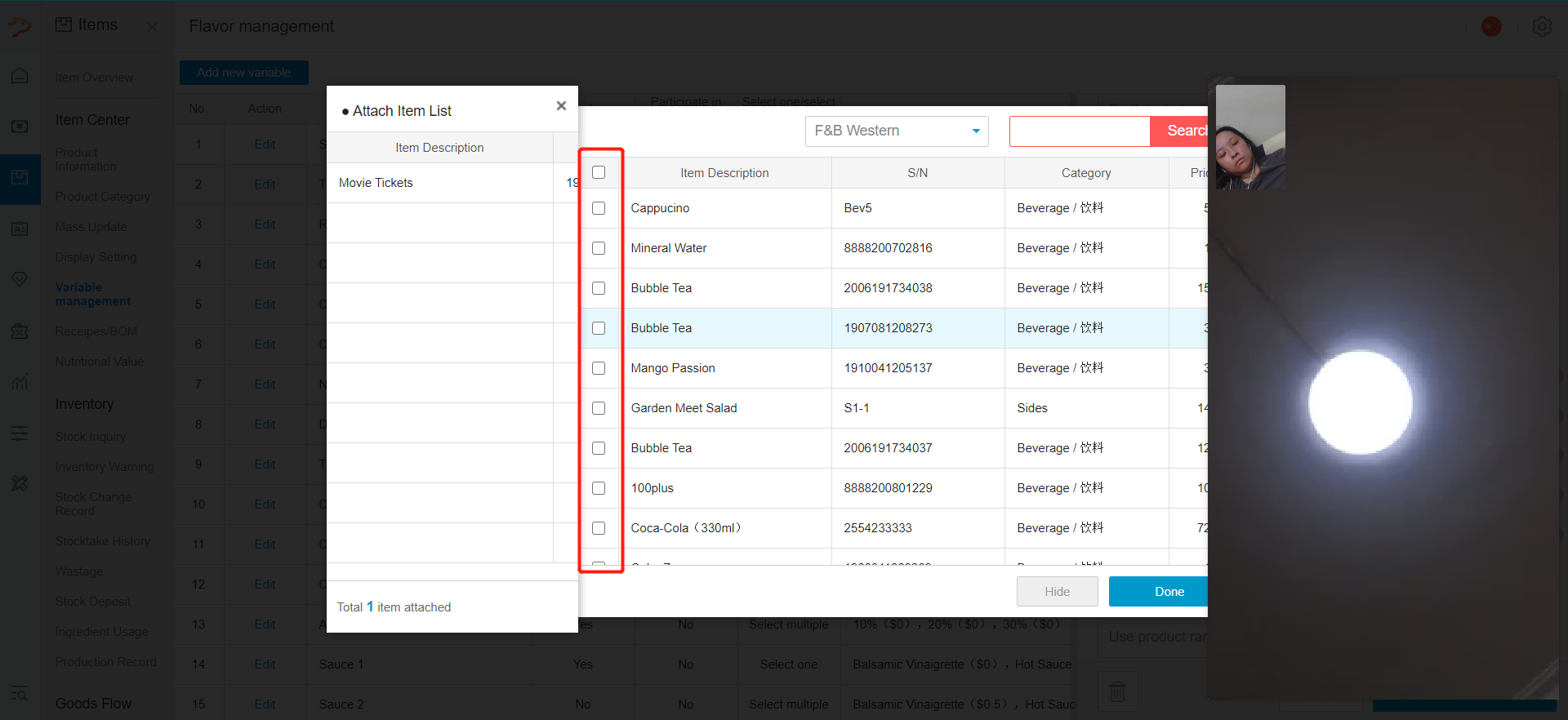
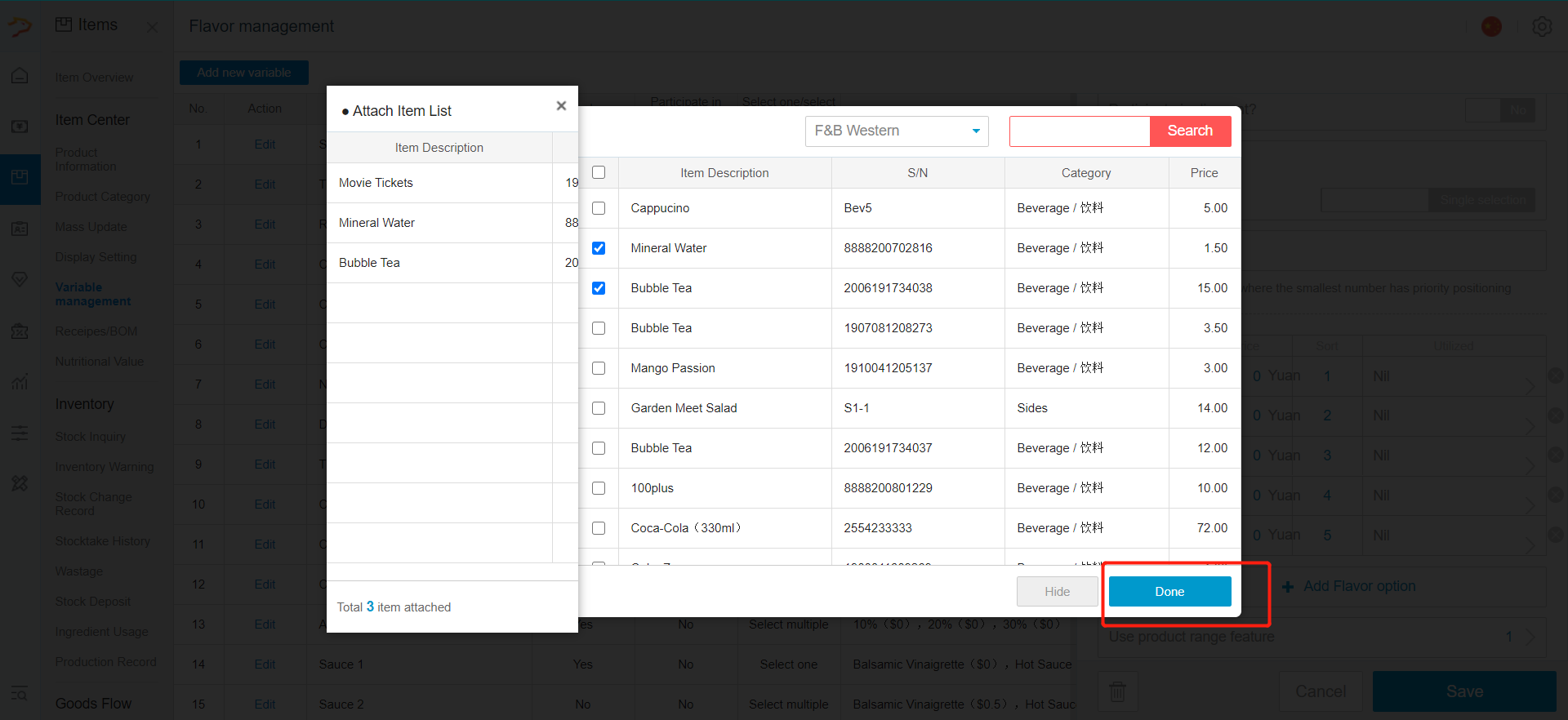
- Once done selecting the product, click on "Done"
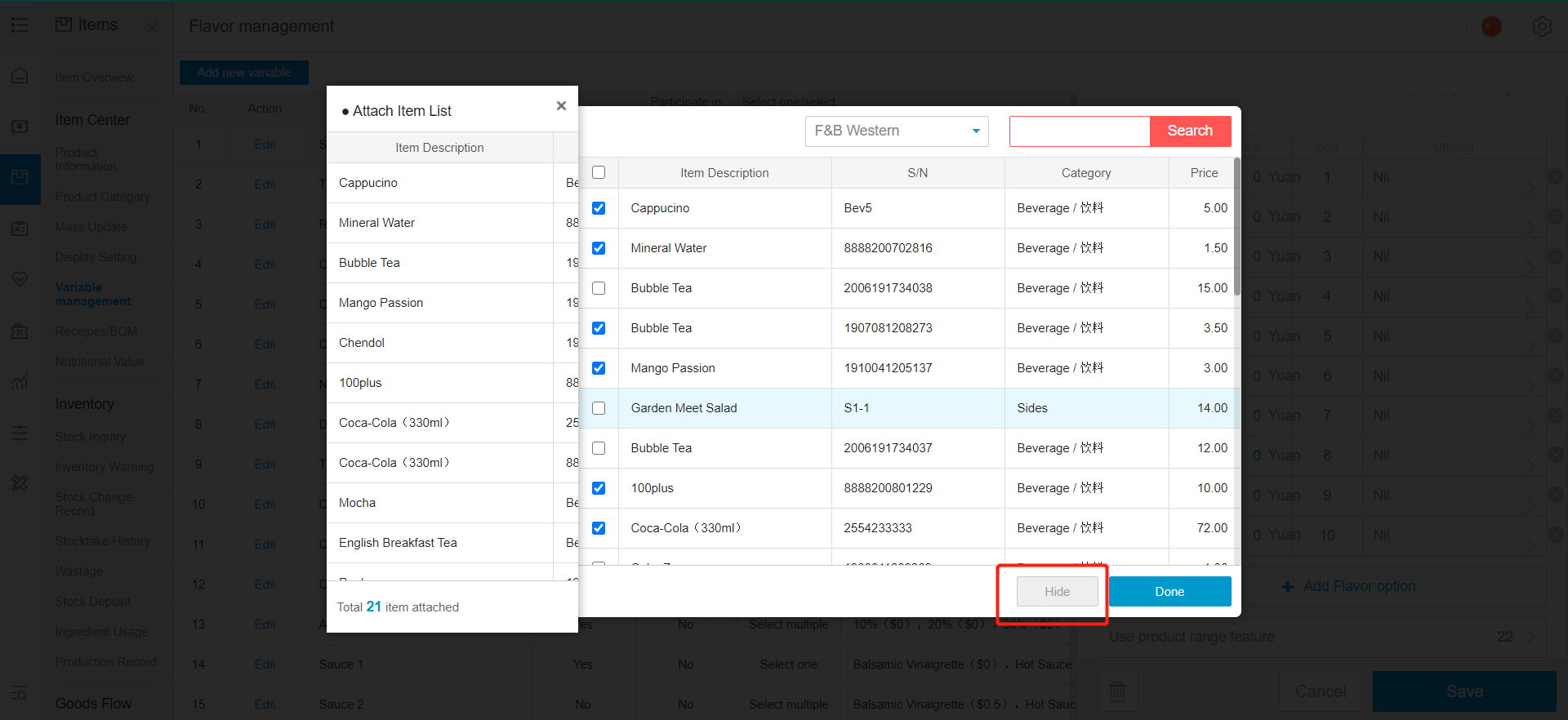
- Click on "Hide" to return to product list page
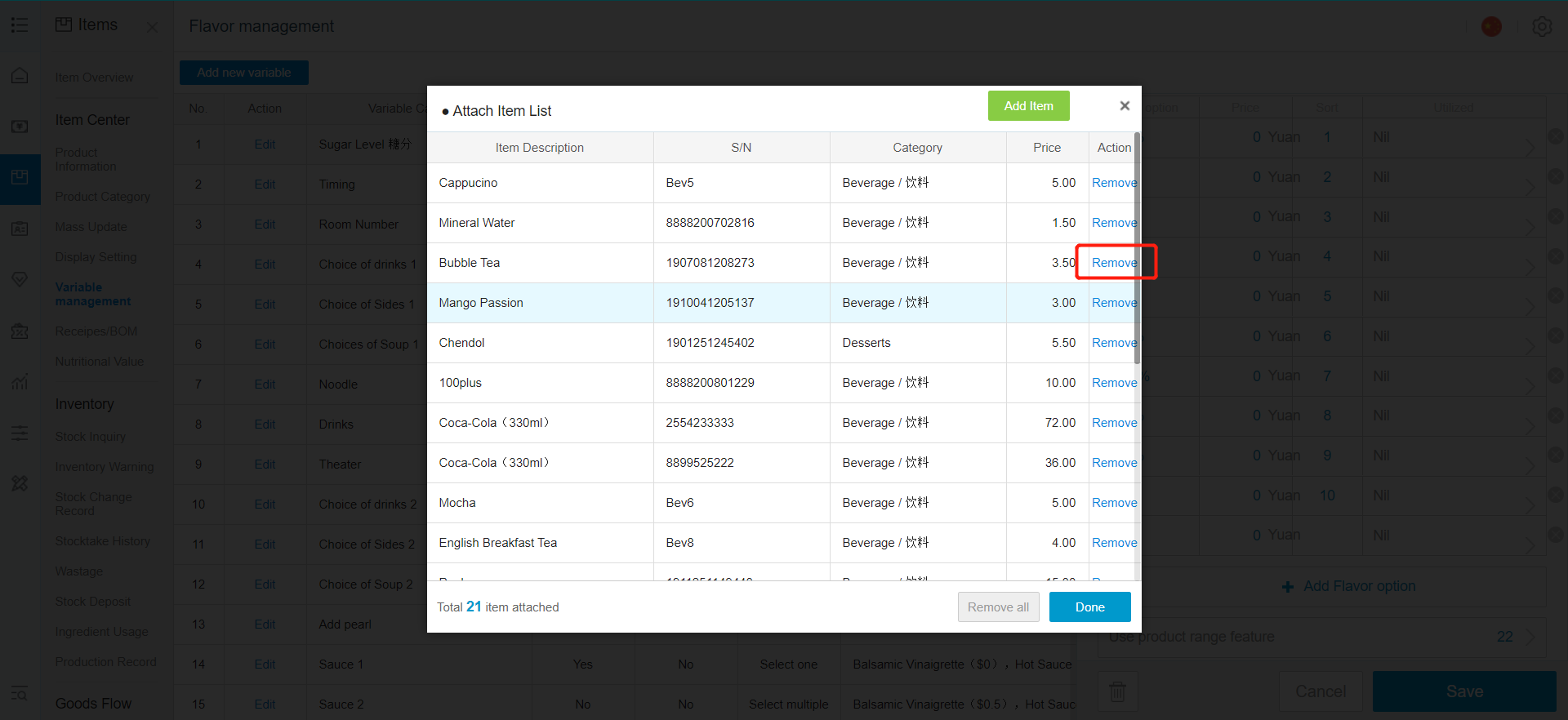
- To remove product(s) attached to the variable, click on "Remove all"
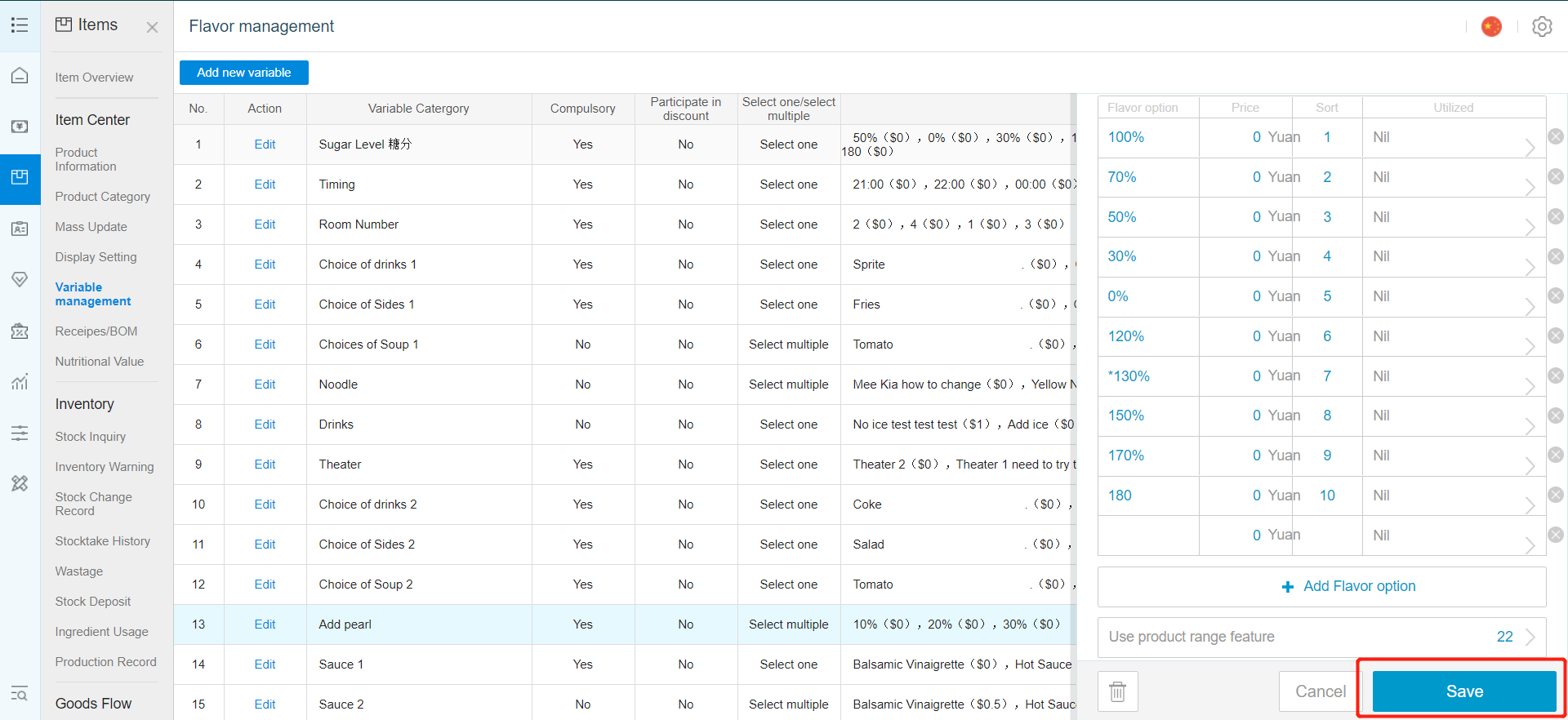
- Once done, click on "Save"
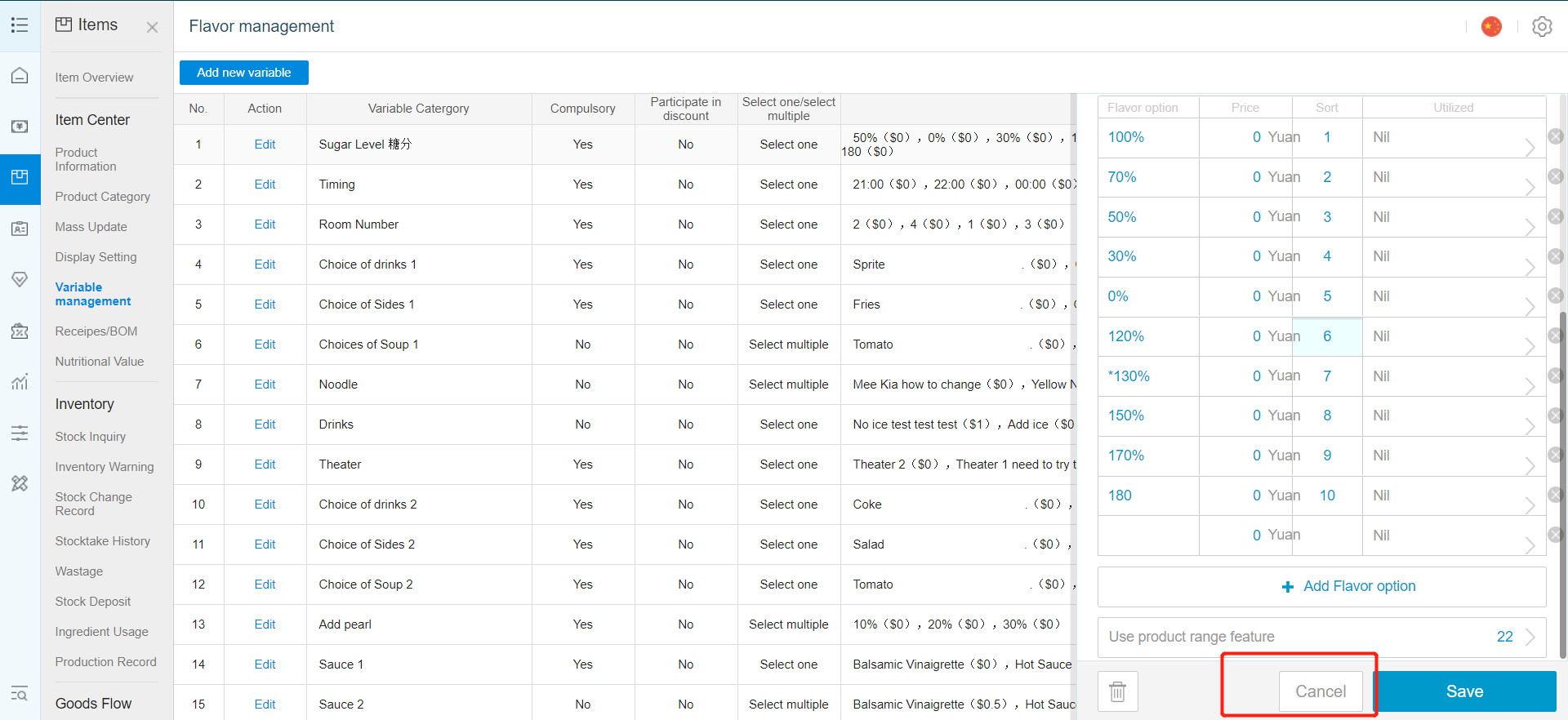
- To cancel your latest changes, click on "Cancel" (Not applicable to saved changes)
Need help? WhatsApp us +65 8508 9618
Any Enquiries? Message us!
If you have any question or concern, please fill below and we’ll get back to you shortly.
Get in Touch with Us


7 Holland Village Way, #05-03/05 Tower Lobby B, One Holland Village, Singapore 275748

Call us for a Quote

+65 8771 8700
+65 6850 5177
Stay Connected
Copyright © Weebo Pte Ltd All Rights Reserved.